
Caller History
- Caller history is split into two parts:
An advanced view for Agents
A simplified view for Normal Users
Accessing Caller History
Agents
Note
Users must use Contact Center or Switchboard client and have Use Comments rights.
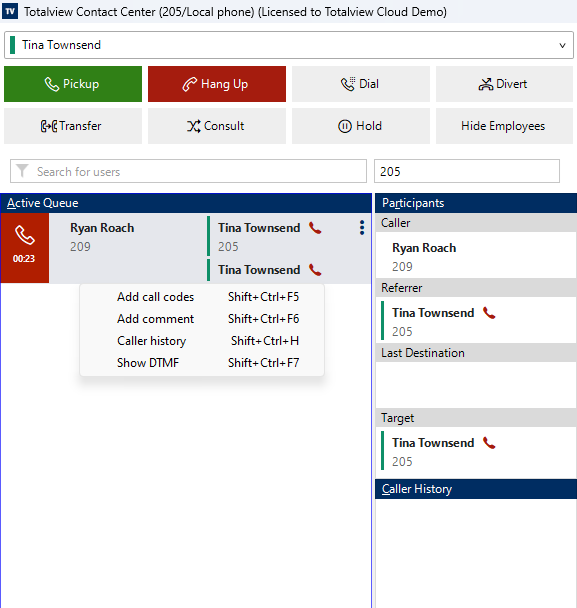
Agents can access caller history by right-clicking on the active call and selecting “Caller History” from the context menu.
You can also use the default keyboard shortcut Ctrl + Shift + H to open the caller history for the active call.
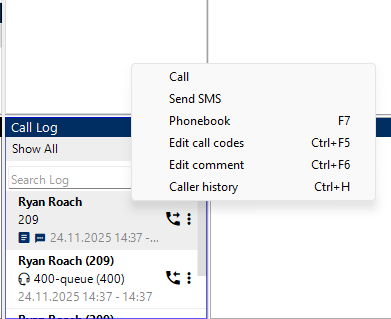
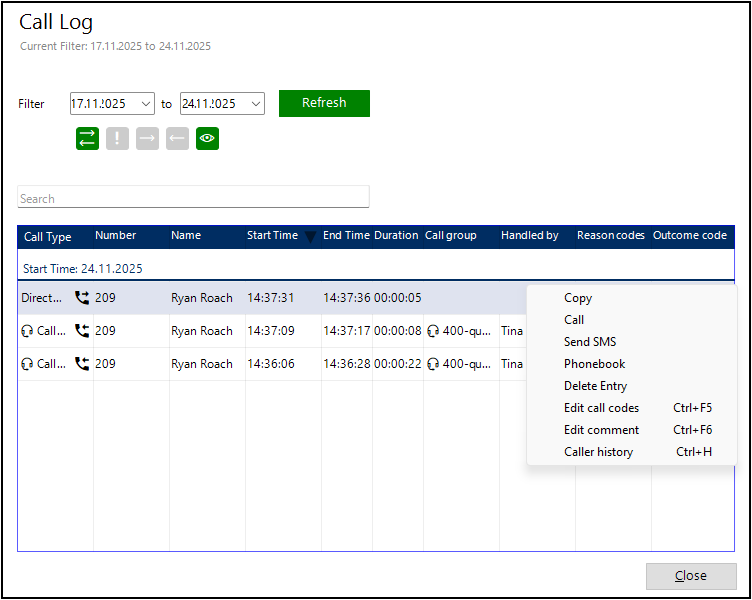
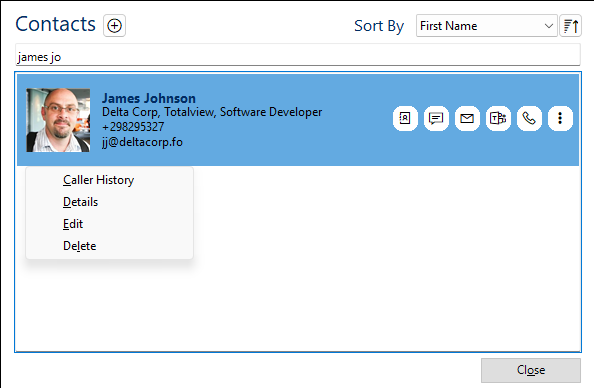
You can also use the default keyboard shortcut Ctrl + H to open the caller history for the focused call, number log, or contacts entry.
Agents can access caller history by right-clicking on a call in the number log and selecting “Caller History” from the context menu.
Agents can access caller history by right-clicking on a call in the call log list and selecting “Caller History” from the context menu.
Agents can access caller history by right-clicking on a Contacts entry and selecting “Caller History” from the context menu.
Normal Users
Note
Users must use Basic or Receptionist client and have Use Comments rights.
When a call has comments added, a comment icon will appear on the active connection.
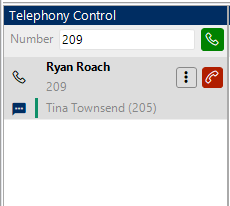
You can then click on the dot menu, or right click to open the context menu, and select “Comments”.
N.B. Normal users can only see comments for the active call, if the active call has comments.
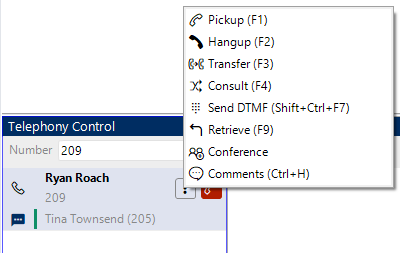
You can also use the default keyboard shortcut Ctrl + H to open the caller history for the active call.
Feature overview
Agents
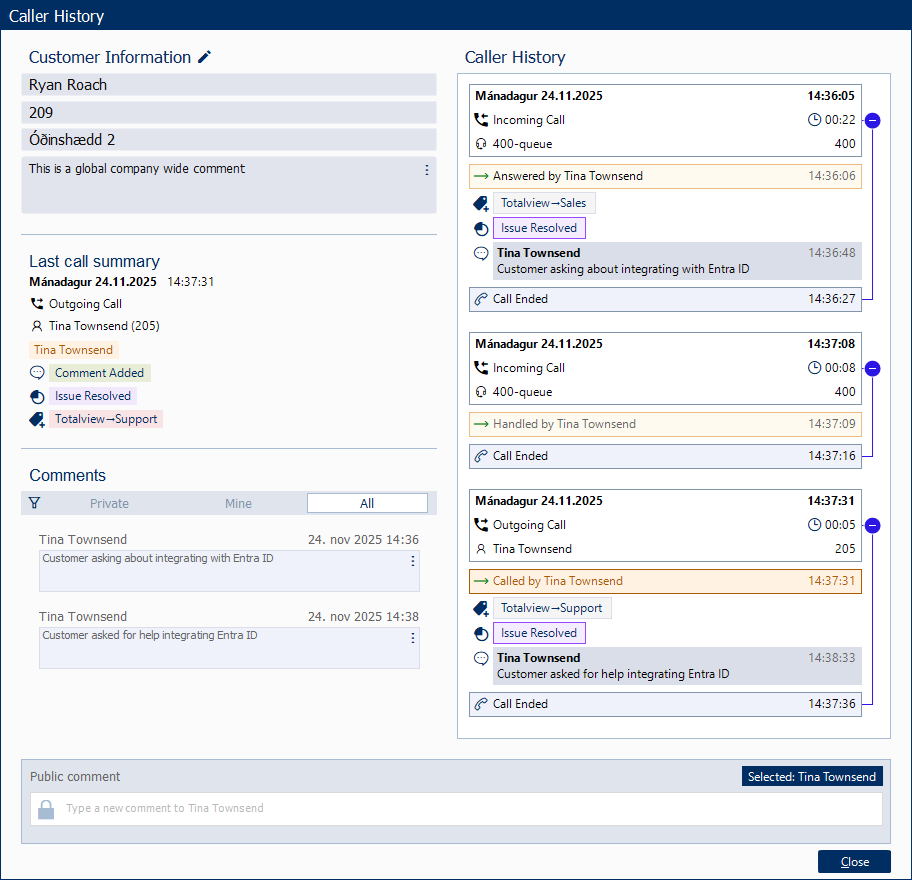
Customer information
Agents have the ability to view customer information, including a global comment.
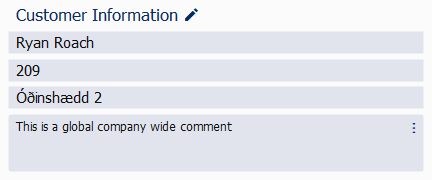
Customer Name
Customer Phone Number
Customer Address
Global Comment
The Global comment can be added/edited by clicking the dot menu then edit, then saving the changes.The Global comment can be deleted by clicking the dot menu then delete.
N.B. The customer information is pulled from the contacts that matches the caller/called number. If no matching contacts entry is found, only the phone number will be displayed.
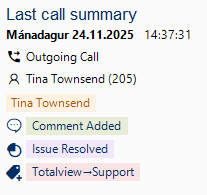
Last Call Summary
Last Call Summary shows aggregated data from the last call, all values shown are distinct, so if call handling codes were used multiple times, they will only be shown once.
N.B. Behavior for comments is different, if there is one or more comment(s) added to the call, Comment added will be shown.
Caller History
Agents have the ability to view detailed caller history, which includes comprehensive information about each call, such as timestamps, call duration, agents, outcome codes, and comments.
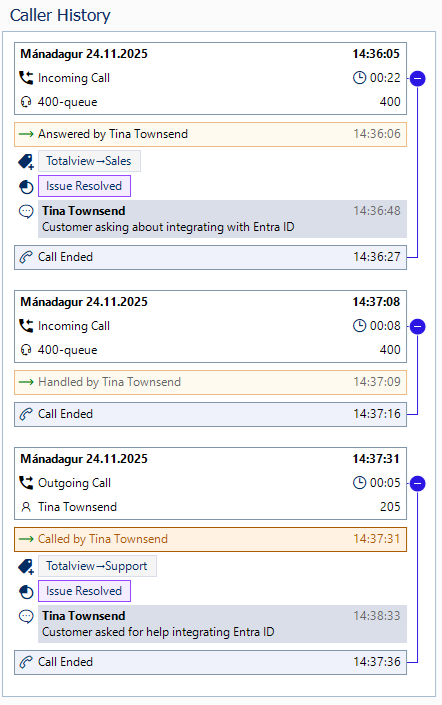
Each call can have multiple agents associated with it. Expanding a call entry reveals detailed information about each agent’s involvement in that call, including their name, the call handling codes they assigned, and any comments they added.
An agent is a person who handled the call, and each agent entry provides insights into their specific actions during the call.
Each agent entry is indicated by a yellow box. When the yellow box is clicked, it sets the focus to where a new comment will be added if you decide to add one.
New Comment
Agents can add new comments to the caller history by writing a comment and pressing enter.
The lock on the left side of the comment box indicates whether the comment will be private or visible to all agents.

The Selected: Tina Townsend indicates that the comment will be added under the agent Tina Townsend for the highlighted agent entry. You can click this to remove the selection, which will add the new comment under the newest call instead.
By default, the call you opened caller history with will be selected. If you opened caller history from the contacts, the newest call will be selected as a fallback.
Normal Users
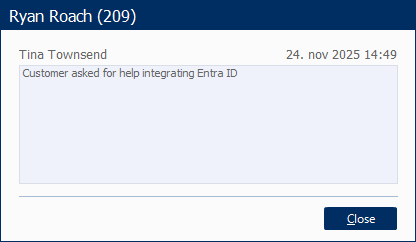
For normal users (not agents), the caller history is simplified to show only comments on the active call when comments exist.
This is a read-only view, normal users cannot add new comments or see detailed call history.
Comments
Agents can view comments added to the Customer.
There are 3 filtering possibilities:
All Comments
Shows all comments added to the customer, that you can see.
My Comments
Shows all comments added by you.
Private Comments
For comments that you have made, you can edit, toggle visibility, or delete them by clicking the dot menu on the comment.