
Wallboard
Note
Please note that Totalview Wallboard is only available for specific PBX types. See here.
Overview
The Totalview Wallboard allows the viewer to see real-time statistics about a call groups and members.
License
In order to run Wallboard the following Totalview licenses are required:
Wallboard Access: 1
Wallboard Client: 1 per physical device
An API key must be generated in Totalview Admin and add to wallboard config file. See configuration section below.
Home View
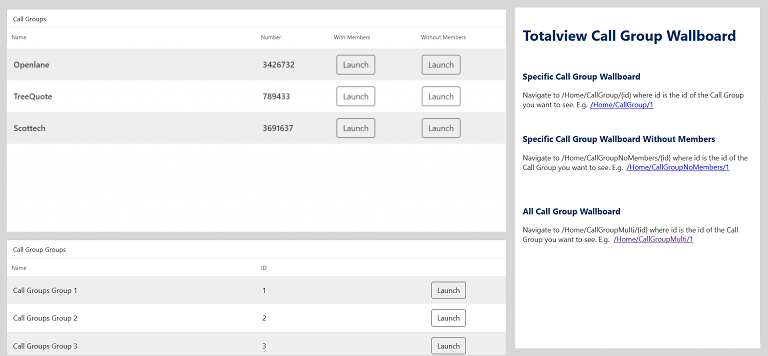
The home view gives an overview of the available call groups and call group groups, with call groups in the top section and call group groups in the bottom.
Clicking one of the “launch” buttons will navigate the user to their chosen view.
There are 3 different views available for display:
Single Call Group
With Members:
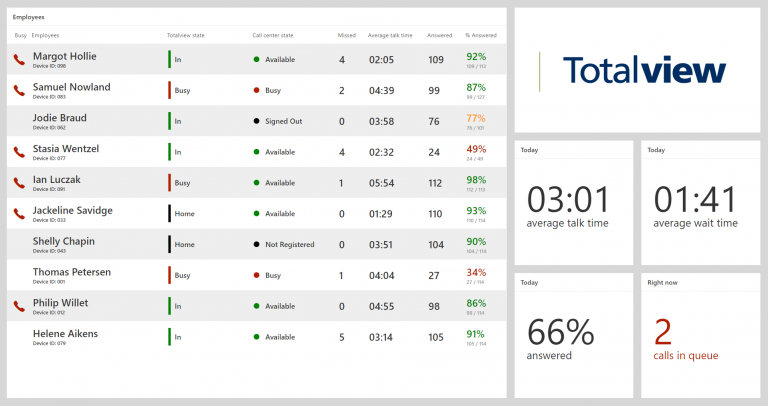
Single Call Group with Members View shows information about all the members in a call group as well as some statistics about the call group itself.
In the left section, each member at the call group is listed. Displayed are both the Totalview status and the call group status of the member.
Along with the member’s statuses, there are statistics about their performance.
In the right section are the combined statistics of all the members in the call group.
Without Members:
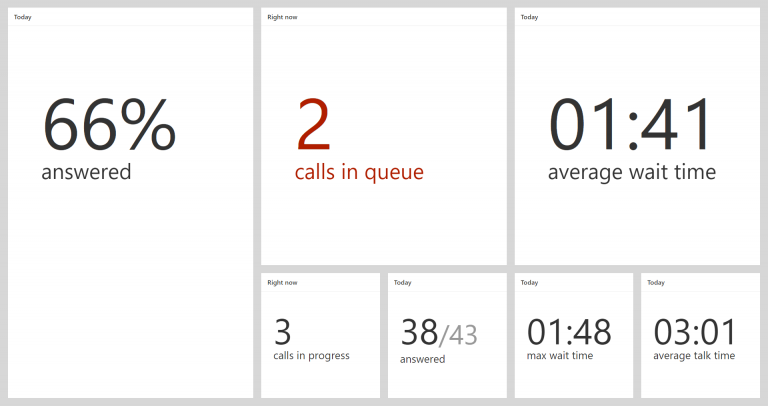
Single Call Group without Members View focuses on the call group itself, and does not display the statistics of specific members.
Rather, it shows the combined performance of all of the members at the call group.
Call Group Groups
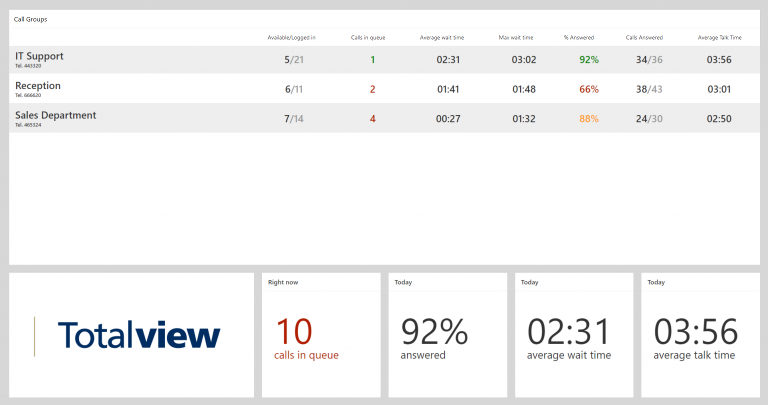
Call Group Groups view displays a list of related call groups which have been grouped together. In the top section of the view, each call group’s statistics are displayed individually. The lower section displays the combined statistics of all call groups in the group.
Configuration
Changing the Color Scheme
Filtering & Sorting
Sorting Members
It is possible to sort:
Members in a Call Group by their name or device id when using Single Call Group view.
Call Groups in a Call Group Group by their name or device id when using Call Groups view.
To sort, open the Single Call Group or Call Groups wallboard and click the URL bar.
Add a query to the end of the url by adding ?sort=
Then, choose whether you want to sort by name or id, followed by ascending (asc) or descending(desc) order. Add both, with no spaces, to the end of the URL.
For example, sorting by id in ascending order would look like this: ?sort=idasc
Sorting by name in descending order would look like this: ?sort=namedesc
Filtering Offline Members
If you wish to hide offline Members from view in a Call Group, you may do so when using Single Call Group view.
To filter, open the Single Call Group wallboard and click the URL bar.
Add a query to the end of the url by adding ?offline=
Then, add true if you’d like to see offline members and false if you’d like to hide them.
True is the default setting.
You can combine filters by writing them in succession, divided by an ampersand & symbol. ie: ?sort=idasc&offline=false
Creating a Call Group Group
Call group groups are configured in Totalview Admin.
API Key
An API key is needed for communication with the Totalview Server. The API key can be set in the appsettings.json under CallCenterStatisticsWcf:ApiKey.
You can find the API key in the TotalviewAdmin.
App Parameters
The following settings are configurable in appsettings.json:
- App:UpdateInterval (default:
5000) How often the wallboard fetches updated data from the server, in milliseconds.
- App:AgentPagingInterval (default:
10000) How often the agent table automatically advances to the next page, in milliseconds. Paging is only active when a call group has more than 11 agents, in which case the table is split into pages of 10 agents each.
- App:Language
The language used by the wallboard. Supported languages are fo, en, da. Leave empty to let the browser determine the language automatically.
Authentication
The following settings are configurable in appsettings.json:
The wallboard supports two authentication modes: OAuth and Access Key.
Only one mode is active at a time. If both OAuthAuthentication:UseOAuth and Authentication:UseAccessKey are set to true, then Authentication:UseAccessKey takes priority.
One of the mode must be set to true, for the wallboard to be able to show data.
The logged in user determines which call groups are visible on the wallboard.
Note
Changes to OAuthAuthentication:UseOAuth require a restart of the wallboard to take effect.
Note
CallGroupStatisticsWcf:ApiKey must be set and must match the API key configured in TotalviewAdmin. See the API Key section above.
OAuth Authentication
To enable OAuth authentication, set OAuthAuthentication:UseOAuth to true.
When TotalviewServer is configured to use OAuth, the wallboard must also use OAuth.
- OAuthAuthentication:Authority
The URL of the OAuth authority (e.g. the TotalviewAuthentication endpoint).
- OAuthAuthentication:ClientSecret
The client secret used when authenticating with the OAuth authority.
Logging out when using OAuth:
Go to the Totalview WebClient (
/Adminor the base address) and log user out.Restart the browser or clear browser cookies.
Access Key Authentication
To enable access key authentication, set Authentication:UseAccessKey to true.
This allows login using a Totalview user and PIN code.
- Authentication:AccessKey
A valid access key (GUID) that must match the API key configured in TotalviewAdmin.
Note
Any change to Authentication:AccessKey will require all users to log in again.
Logging out when using access key authentication:
Clear browser cookies.