Templates
A template is a set of predefined settings to be used when changing current state or creating a reservation.
When using a template, the predefined values are only suggestions and can be changed by the users at will.
The template can hold information about what state to suggest, descriptive text, what to do with the phone (e.g. forwarding) etc. The templates can also hold information about what state to activate when the current states end time is reached.
There is a tight relationship between templates and states, for example does the template inherit the icon color from the selected state, and when creating a state the user is prompted to verify if there should be created a corresponding template.
Example of the templates setup screen is shown below:
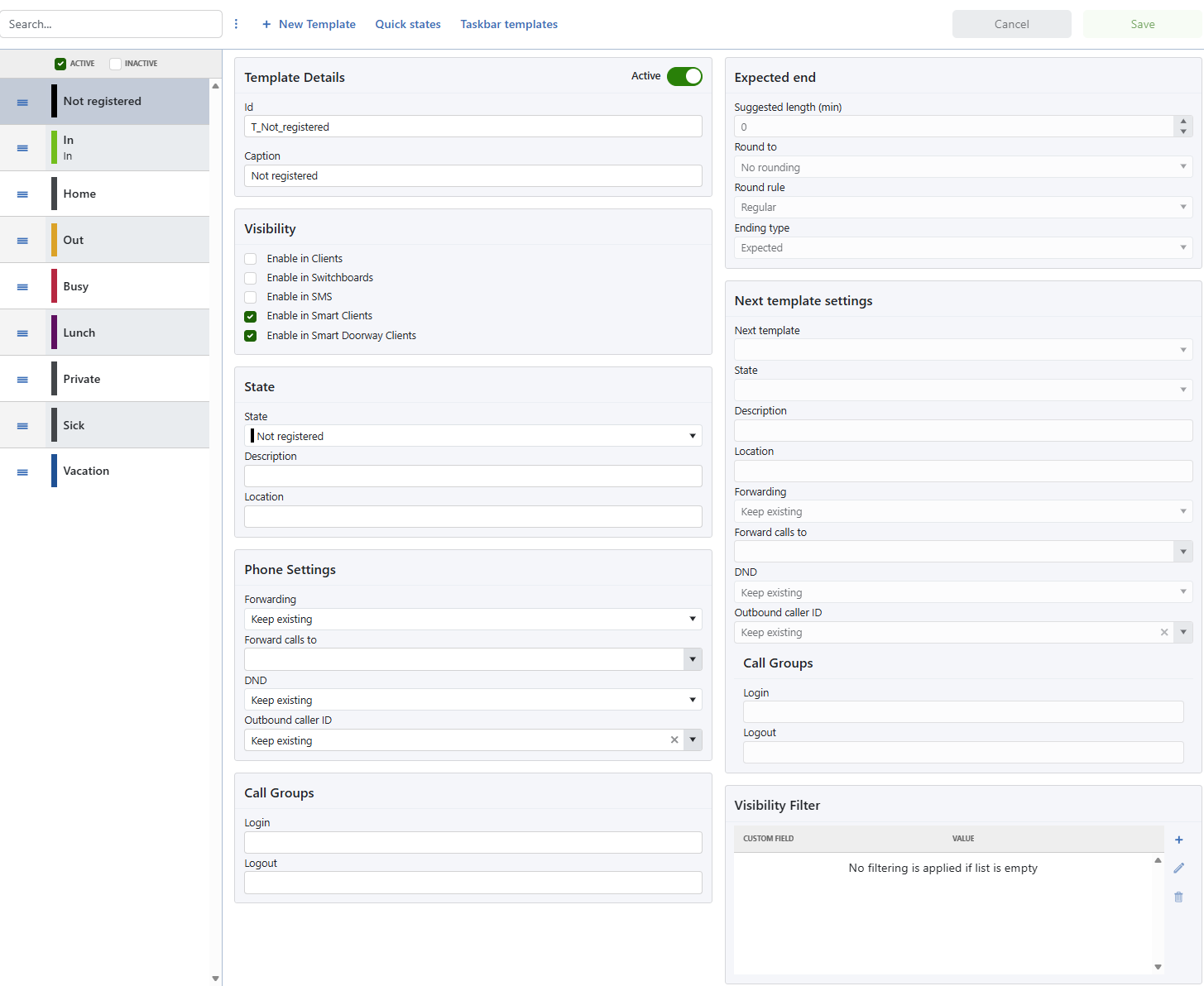
Template details
ID |
The ID identifies the template throughout the system. The ID must be unique among the defined states and templates. |
Caption |
A user-friendly name for the template. The caption is shown instead of the ID when users select a template, for example in clients. |
Visibility
Enable in Clients |
Template can be used in Desktop Client. |
Enable in Switchboard |
Template can be used in Switchboard Client. |
Enable in SMS |
Template can be used when setting a state by SMS. |
Enable in Smart Clients |
Template can be used with Smart Clients. |
Enable in Smart Doorway Clients |
Template can be used with Smart Doorway Clients. |
State
State |
Select the state to suggest when the user selects this template. The state’s predefined values are added to the template. |
Description and location |
Predefined suggested values for the description and location. |
Phone settings
What to forward |
Determines what to do with the user’s default phone when activating a current state or promoting a reservation.
|
Forward calls to |
Enter a number, or select a logical phone descriptor such as Mobile or Home. You can also select the default forwarding. The forwarding then follows the rules defined in the Forwarding view.(See: Explanation of defined forwarding rules). If no rule is defined, Default is “First in my list” under Contact information. |
DND |
Determines the Do Not Disturb setting of the user’s default phone when activating a current state or promoting a reservation.
|
Outbound caller ID |
Supported by specific PBX types. See here. Determines the outbound caller ID of the user’s extension when activating a current state or promoting a reservation.
|
Call group settings |
Applies to specific PBX types. See here. Enter a comma-separated list of call group IDs to log in to or out of when using this template.
The list can contain intervals, for example |
Expected end
Suggested length |
When using the template and setting the start time, the end time is set to the start time plus the suggested length. |
Round to and round rule |
When adding suggested length to the start time, the round to and round rule can be used to get a cleaner ending time. time. Round to allows you to specify if the end time should round to the closest hour, half hour, 15 minutes etc. The round rule can be used to determine how to round - up, down or regular. |
Ending type |
Can be set to Actual or Expected. When set to Actual, an ending state can be activated when the ending time is reached. |
Visibility filter
Add filtering to reduce the number of templates available to users. When a custom-field filter is added, only users assigned the selected custom-field value can select the template when changing state or creating appointments in the Desktop and Smart Clients.
No filtering is applied in Switchboard or Receptionist clients. No filtering is applied if the filter list is empty.
Custom field |
The name of the custom field. Only custom fields with predefined values can be used for filtering. |
Value |
The custom-field value to use as a filter. |
Next template settings
If the ending type of the current state or reservation is set to Actual, an ending state can be specified. When the ending time is reached, this state is activated.
The specified ending state cannot itself have an ending state. It is activated with the ending type set to Undefined and continues until another state is activated, a reservation is promoted, or the state is reset at midnight.
Quick states
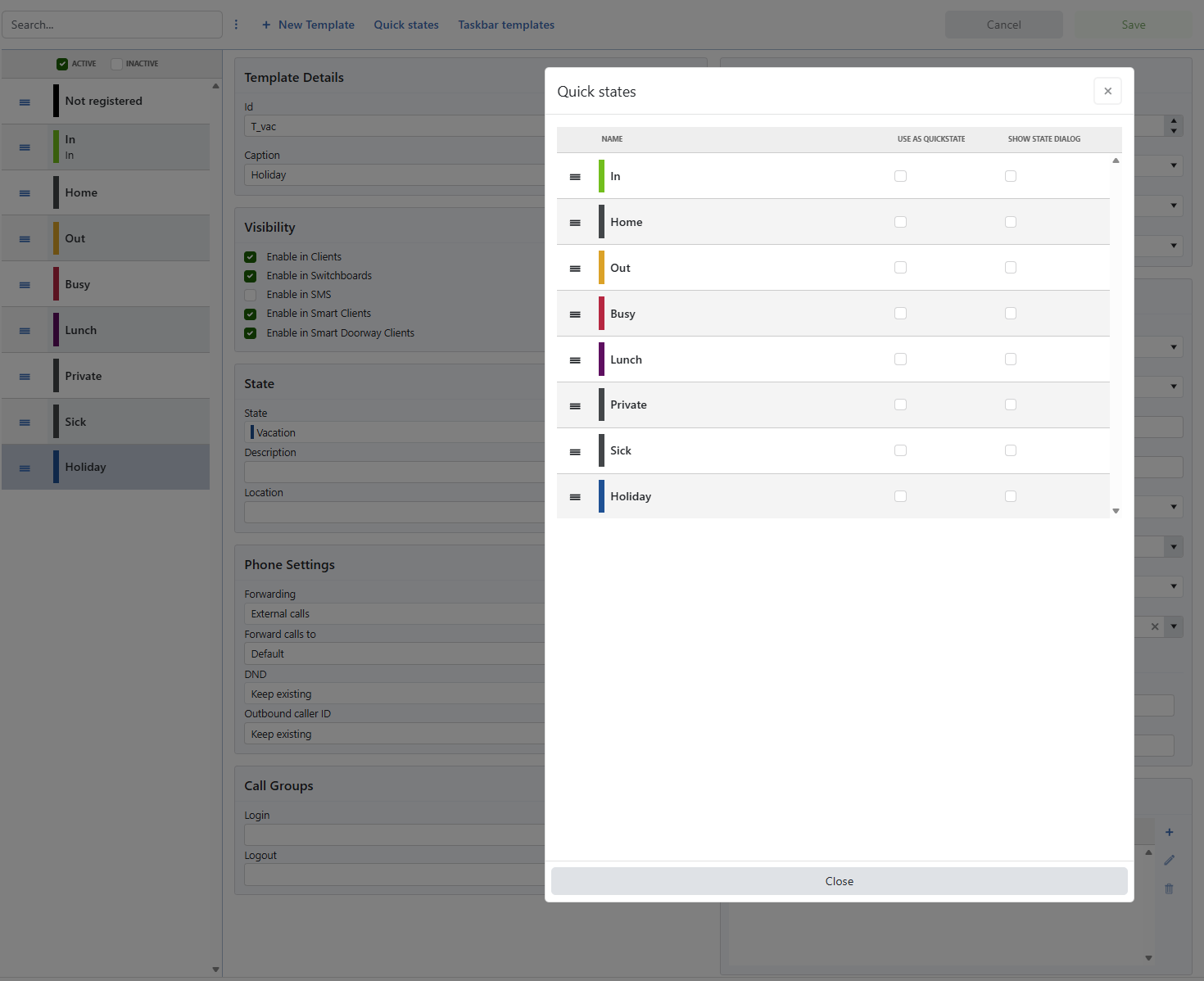
Use Quick States to define which templates are visible in the Quick States window.
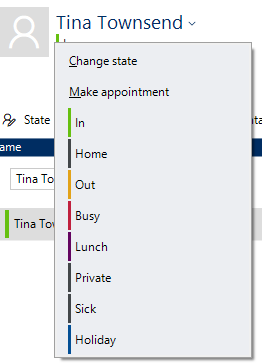
When Show state dialog is selected for a template, selecting the template opens the Change State dialog. This setting also determines whether Change State in Smart Clients acts as a Quick State or displays the details window.
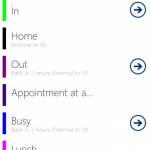
A template cannot be used as a Quick State when a work specification is attached to its state and the work specification field is required, or when User.Req.Attachments is set.
Taskbar templates
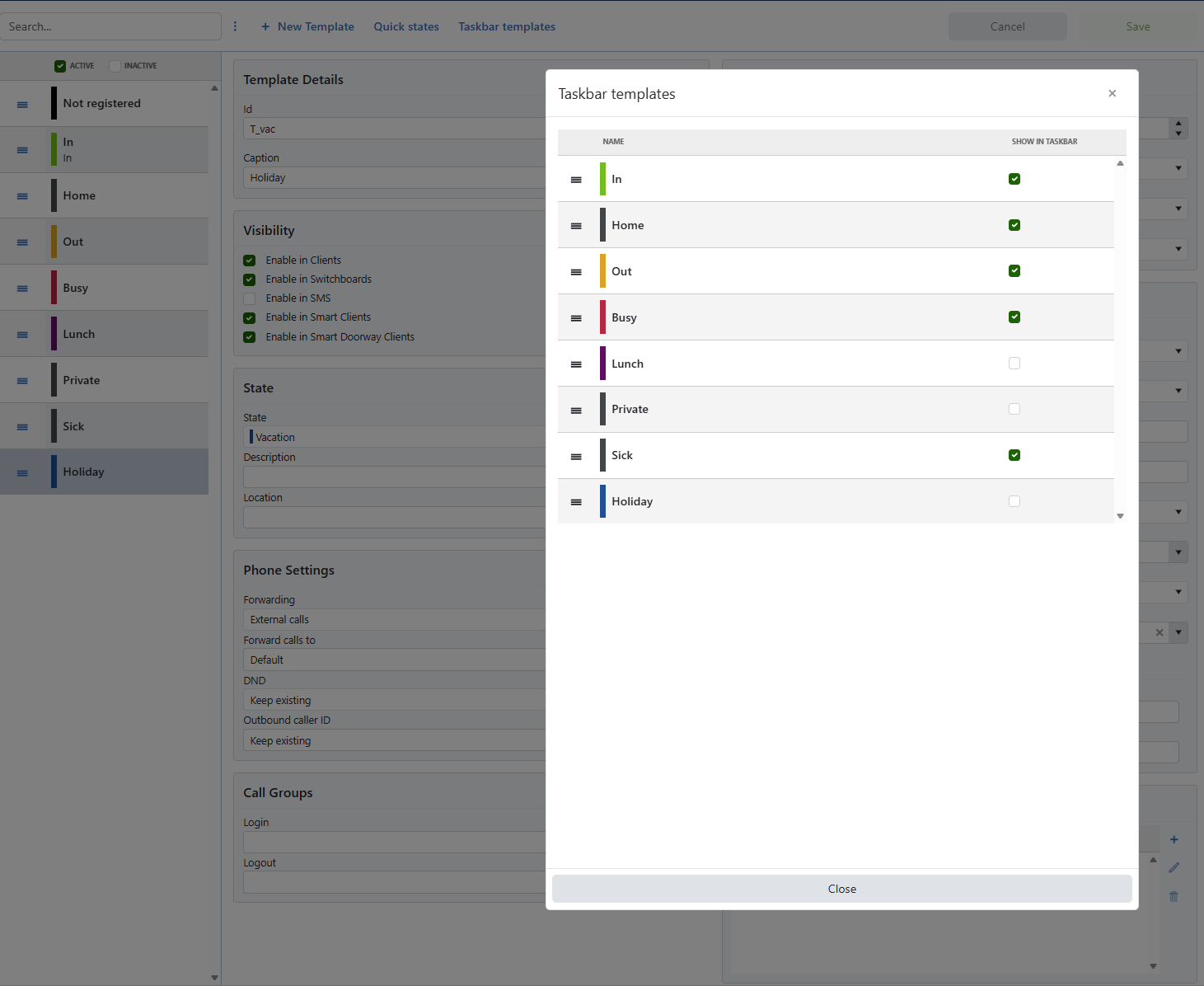
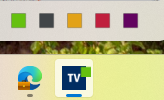
Use Taskbar Templates to define which templates are visible in the taskbar and their display order.