
Contacts
The Phonebook has been changed to Contacts, and has been implemented in Web Admin
The numbers and names that are shown in the telephony control in the Totalview3Clients, come from the contact registered in the Totalview3Admin and now also Web Admin.
The Overview
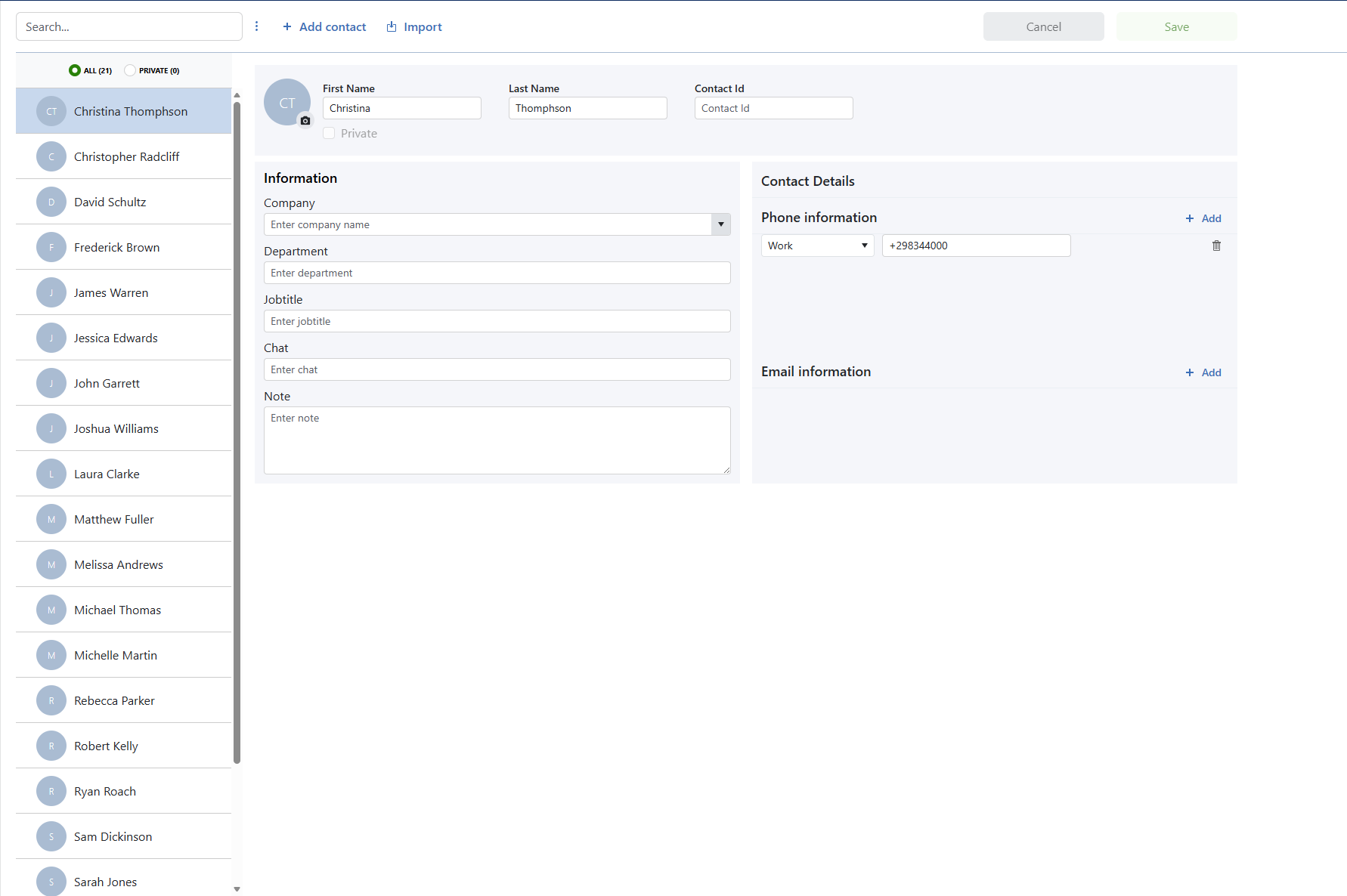
Search
Using the search bar, your input will be matched against the following fields: Name, Contact Id, Company, Department, Jobtitle, Chat, Phonenumber and Email.
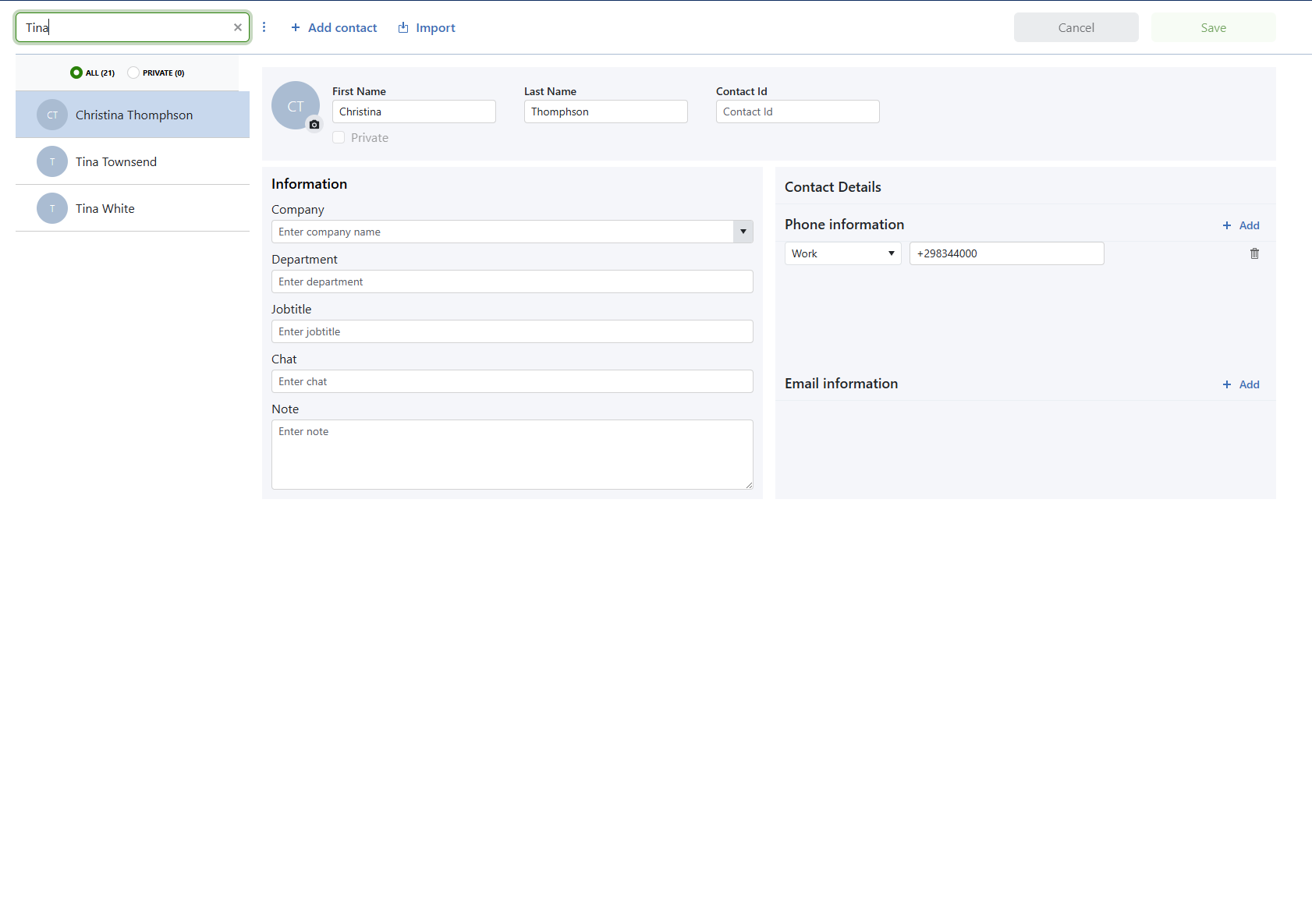
Add
When clicking the Add contact button, a new contact will appear in the list.
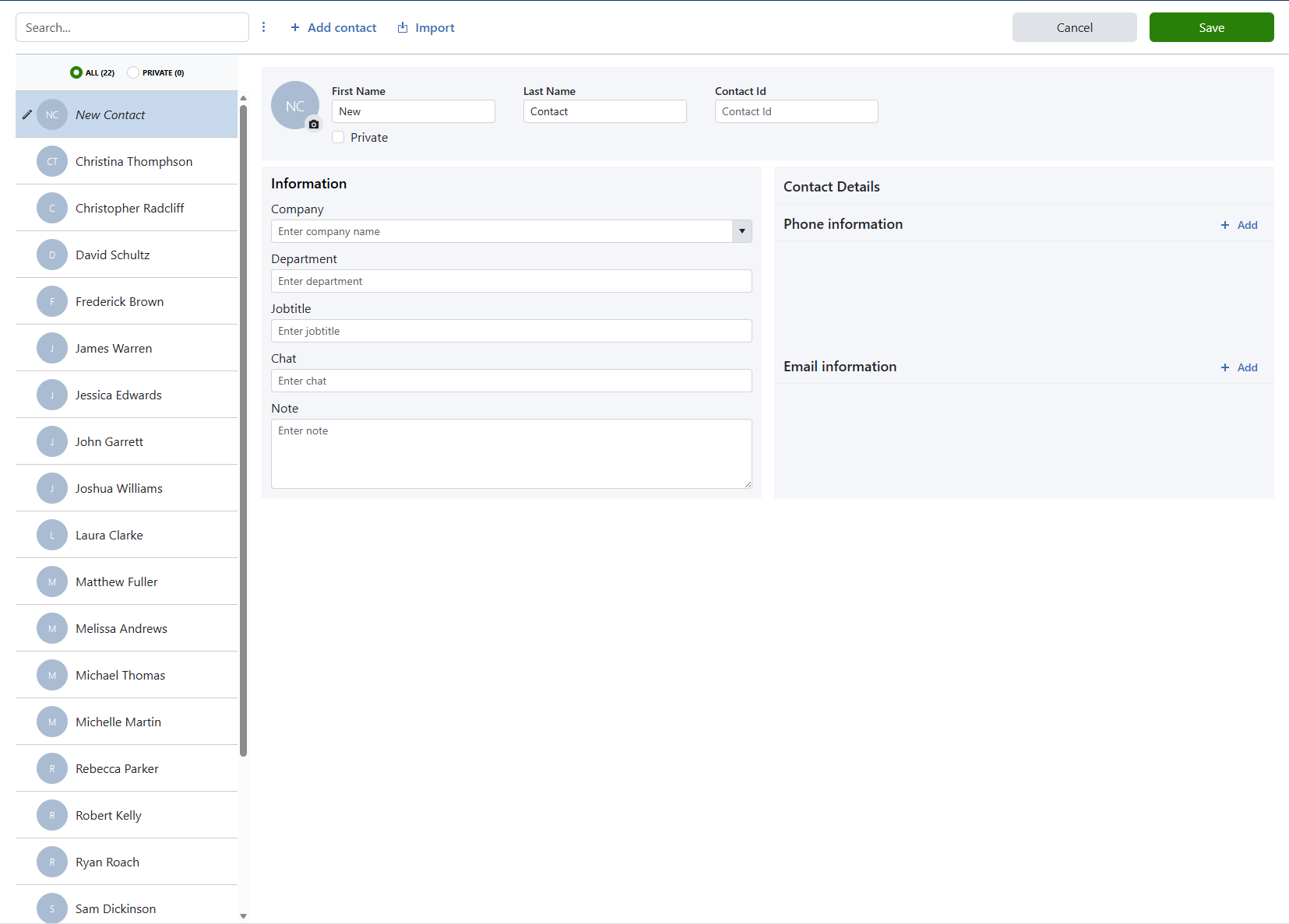
Once finished filling in the required data, press the Save button, the new entry will now be stored permamently in the list. You can use the searching functionality to verify
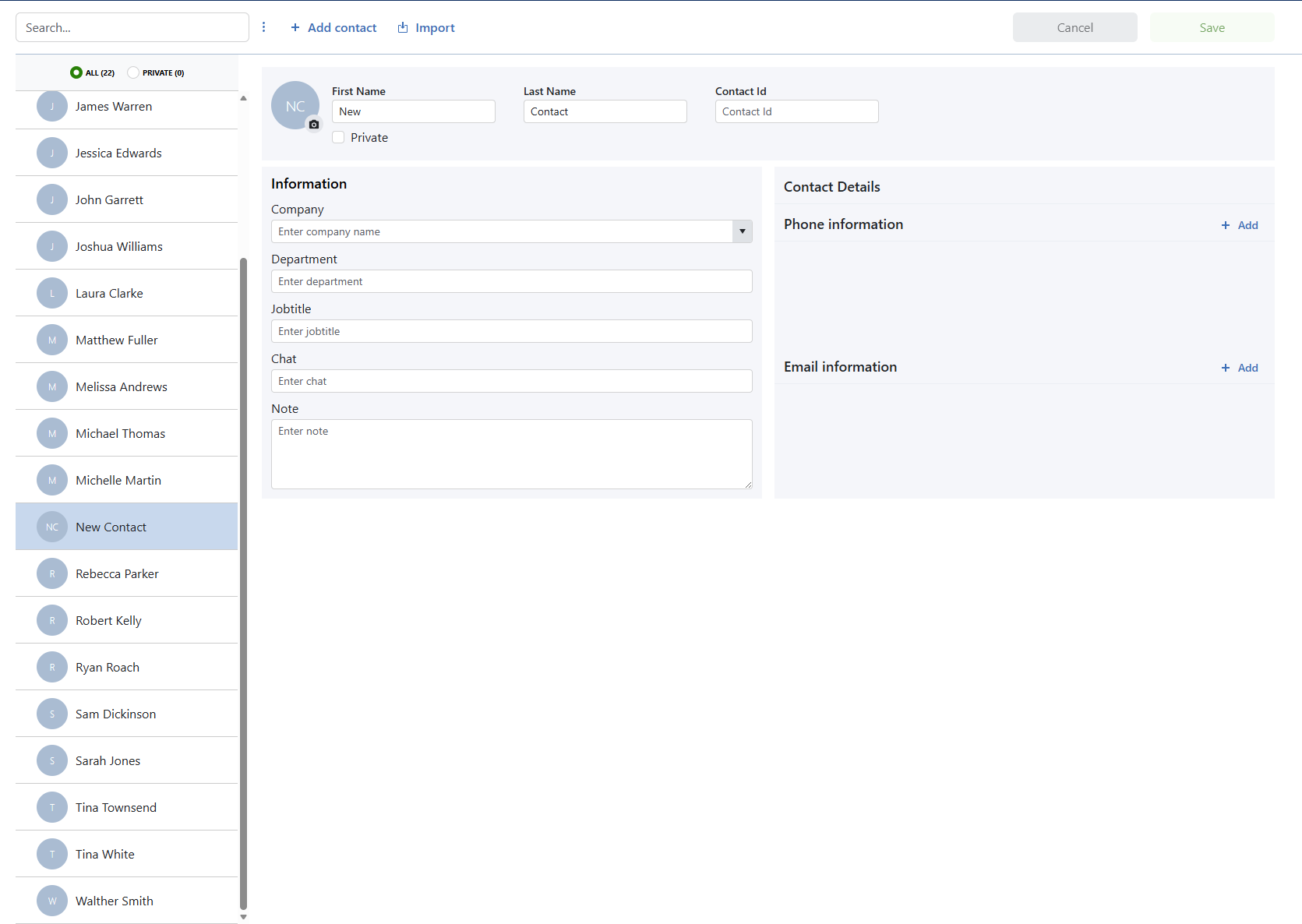
Update
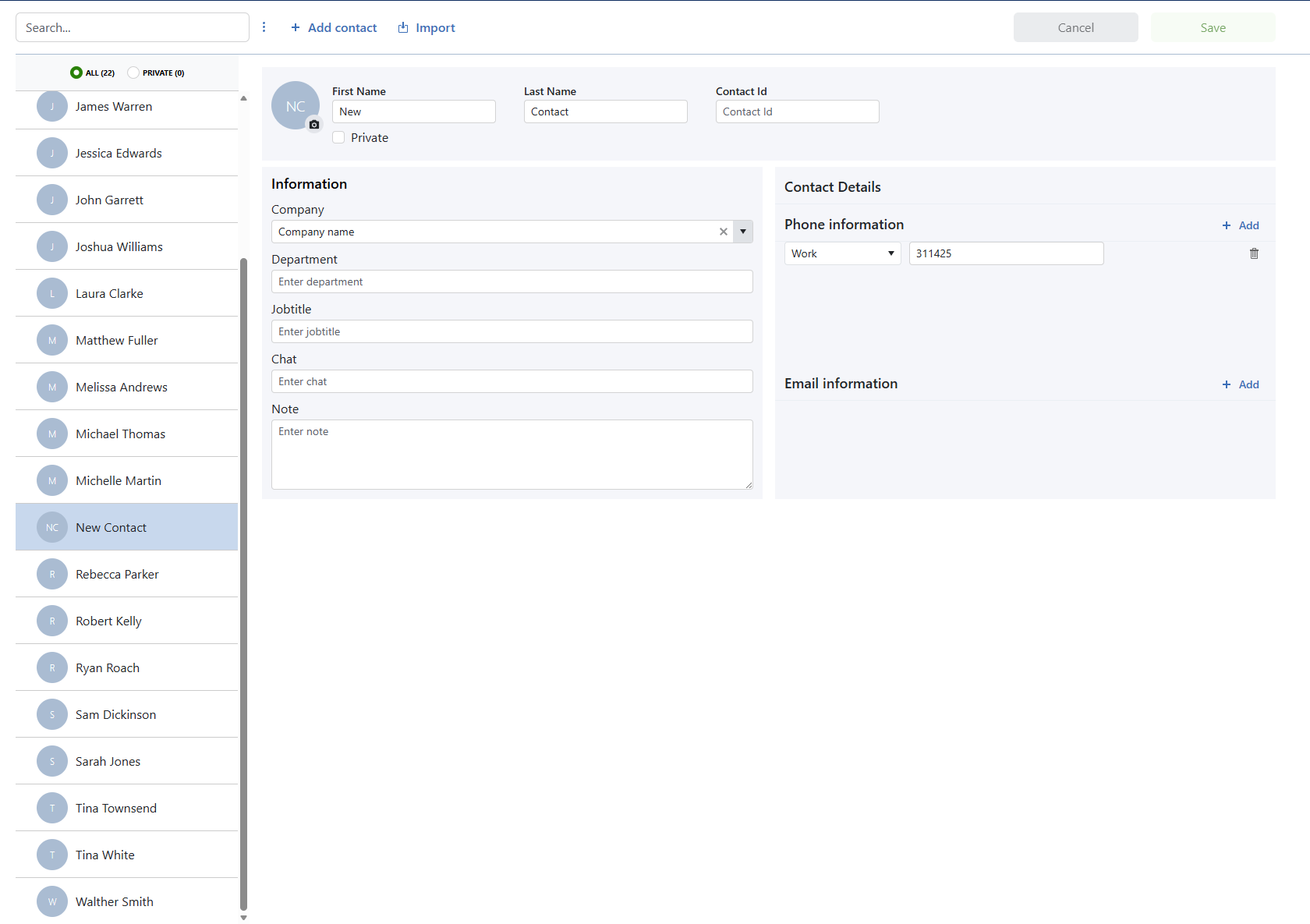
Select the contact you want to edit and it’s values will displayed
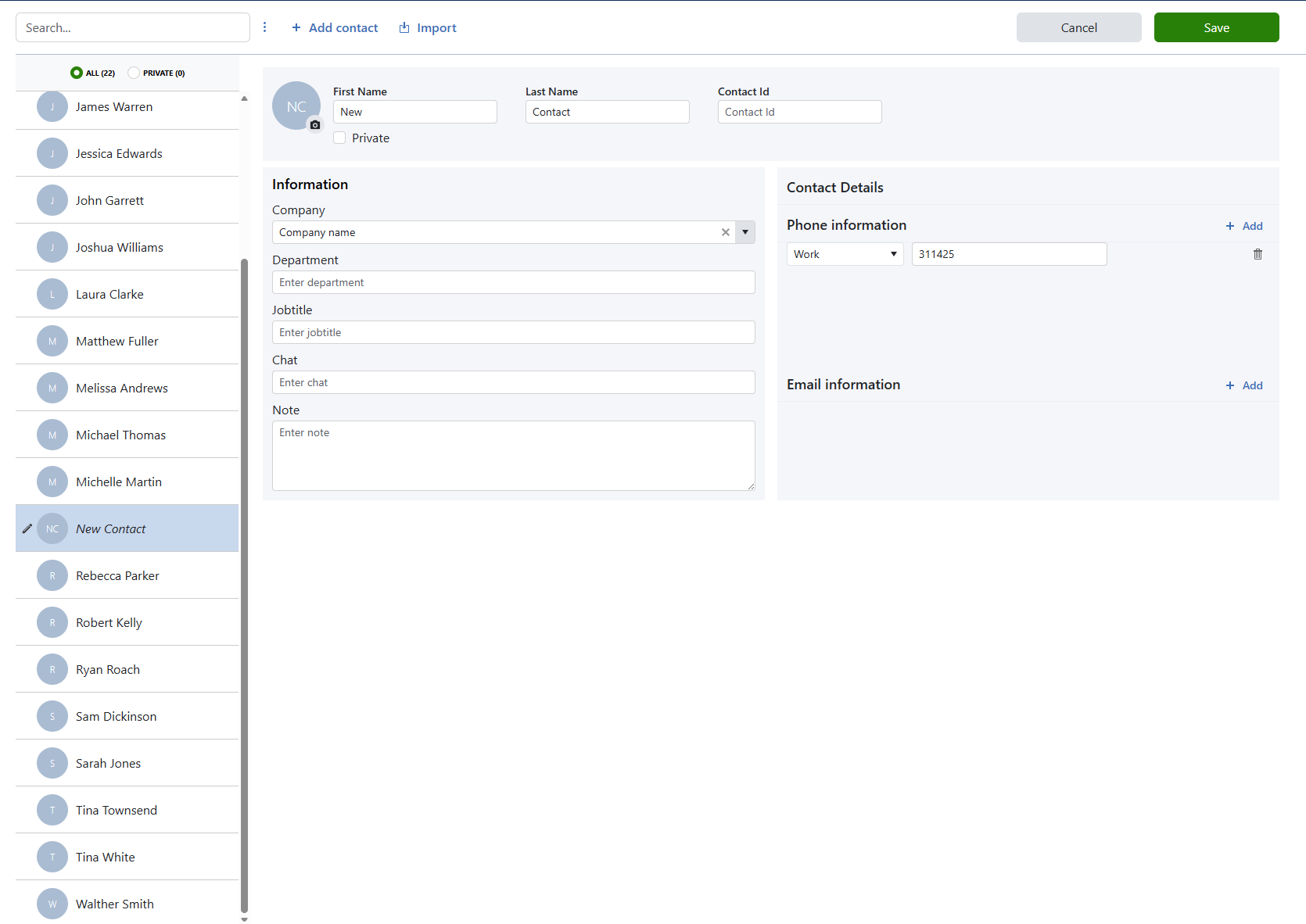
When you are done editing, press the Save button.
Delete
When right clicking the contact and click ‘Delete Selected’, the contact will be displayed as marked for deletion.
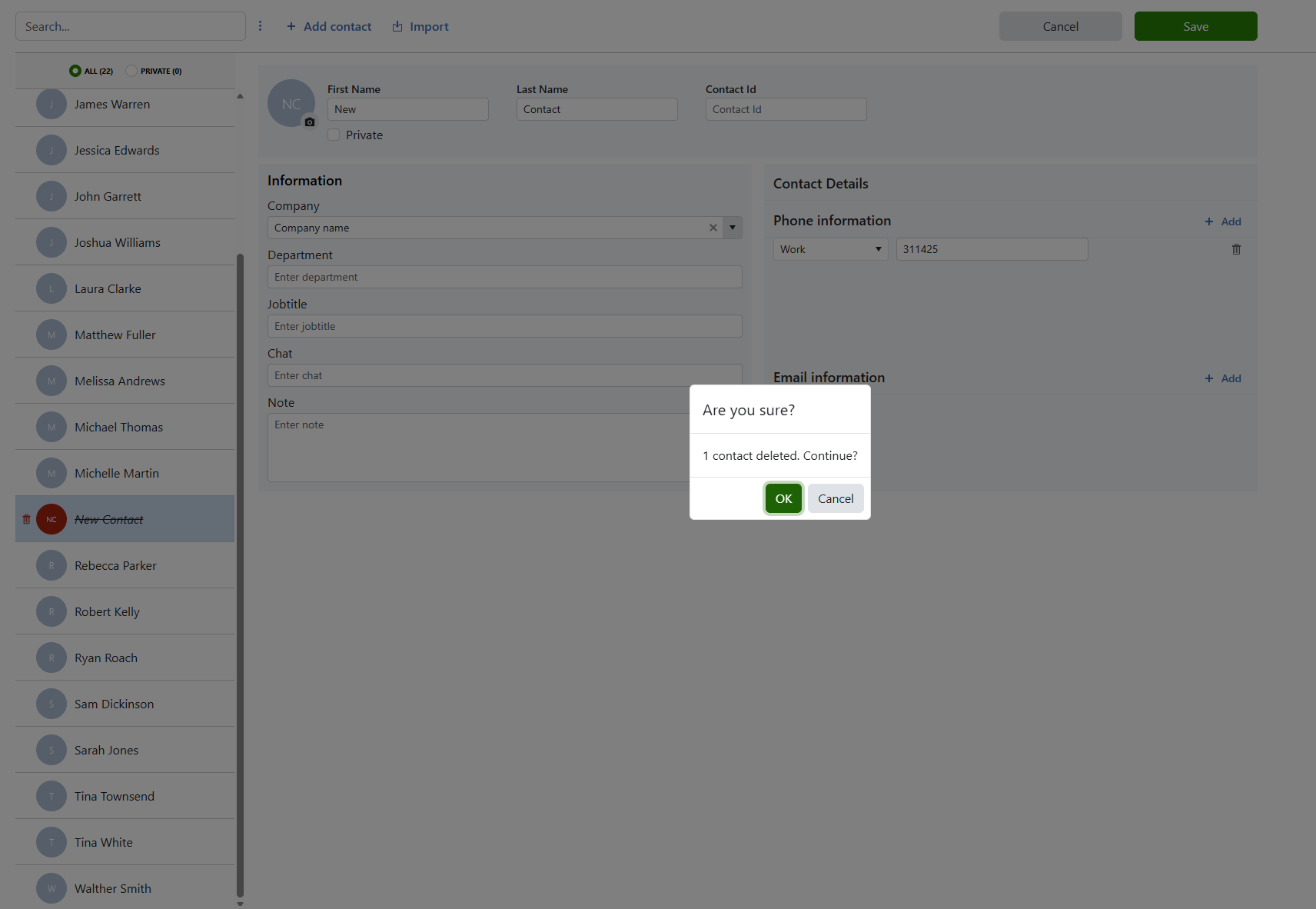
Click the ‘Save’ button to save the changes, confirm the action by clicking ‘OK’ and the contact will be deleted from the list.
Import
Note: Supported file types are: csv, txt, xml, vcf and json
The Import functionality now has the ability to handle xml, vCard and json files alongside csv.
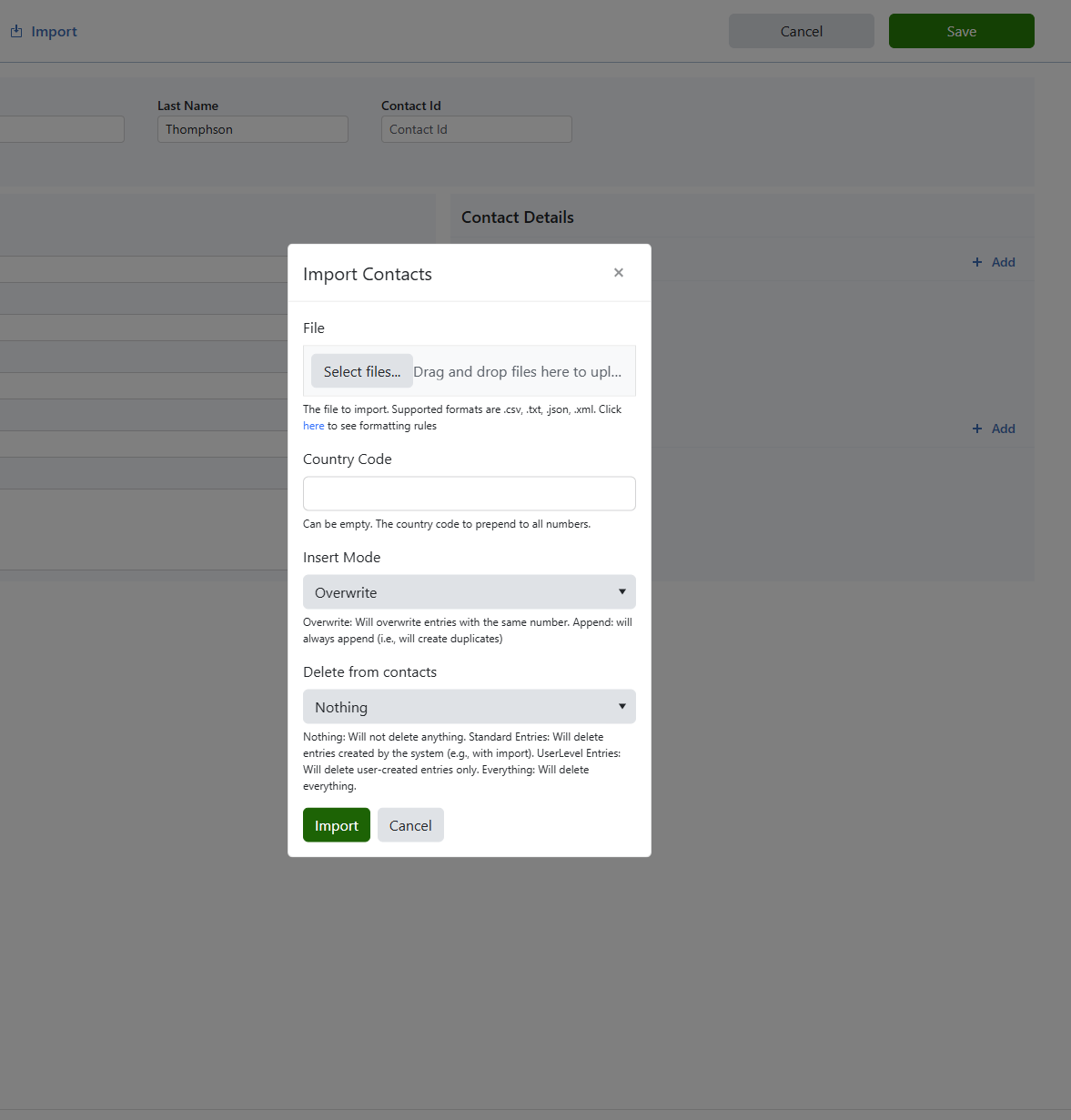
Default Import Parameters:
File to import
Supported formats are .csv, .txt, .json, .xml, .vcf. Click here to see formatting rules
Country Code
The country code to prepend to all numbers (Can be empty)
Insert Mode
Overwrite: Will overwrite entries with the same number.
Append: Will always append (i.e., will create duplicates)
Delete from contacts
Nothing: Will not delete anything
Standard Entries: Will delete entries created by the system (e.g., with import)
UserLevel Entries: Will delete user-created entries only
Everything: Will delete everything
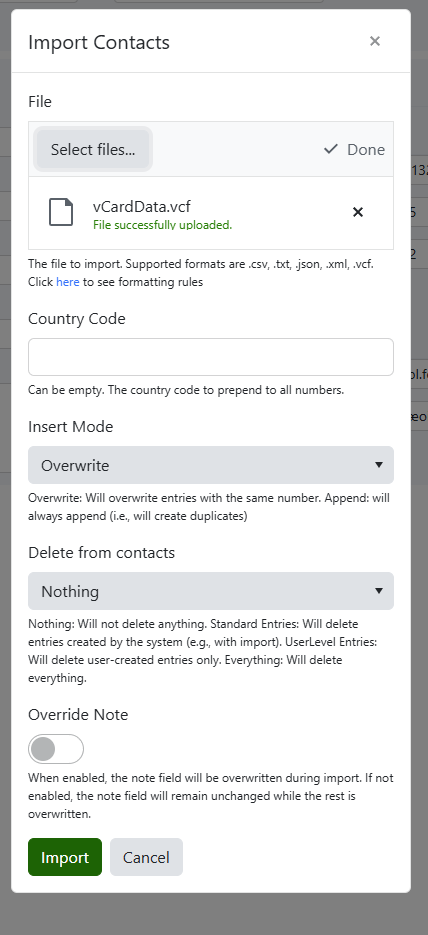
Override note
If checked, will override the note field for all entries being imported
JSON file being imported
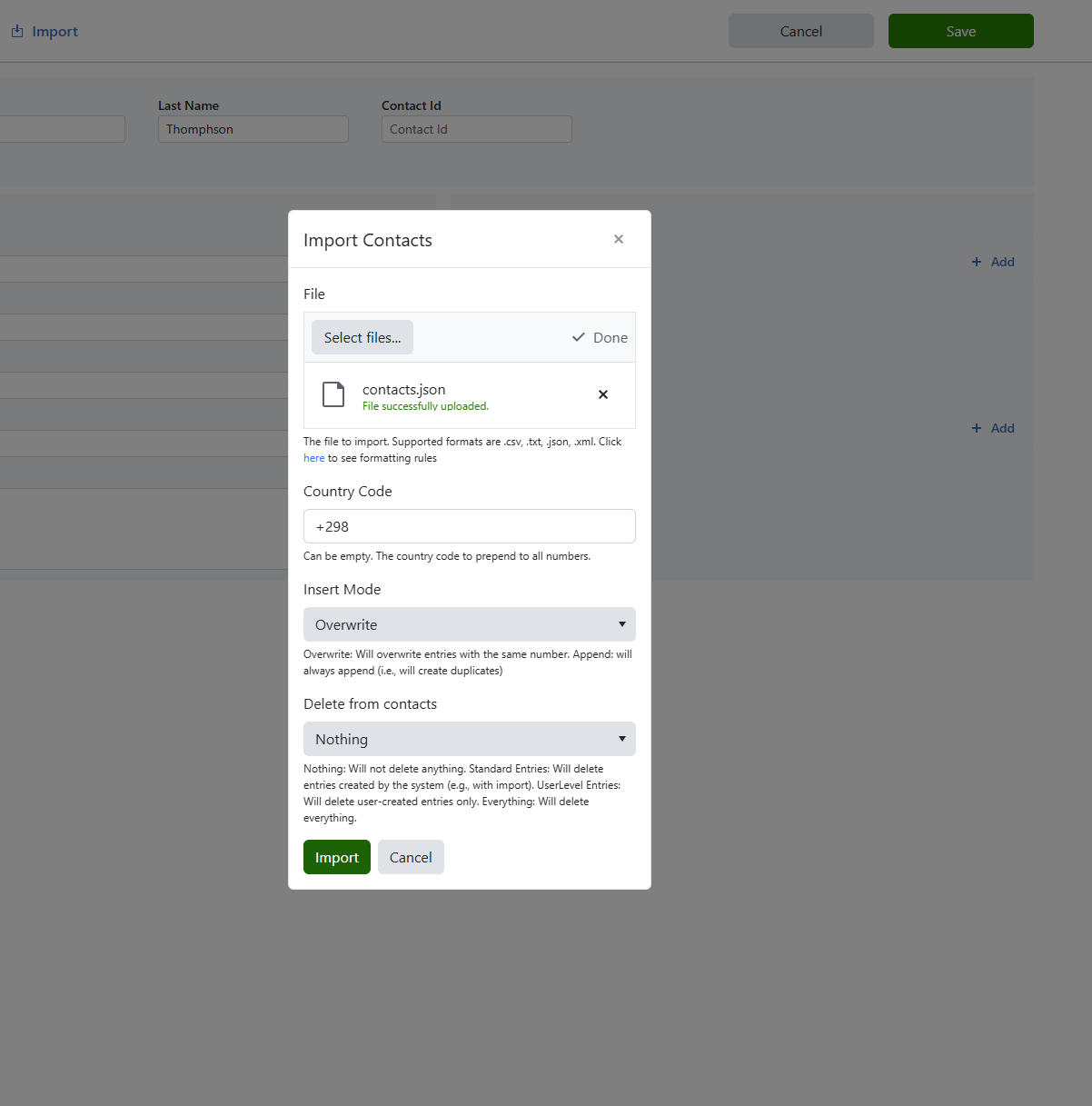
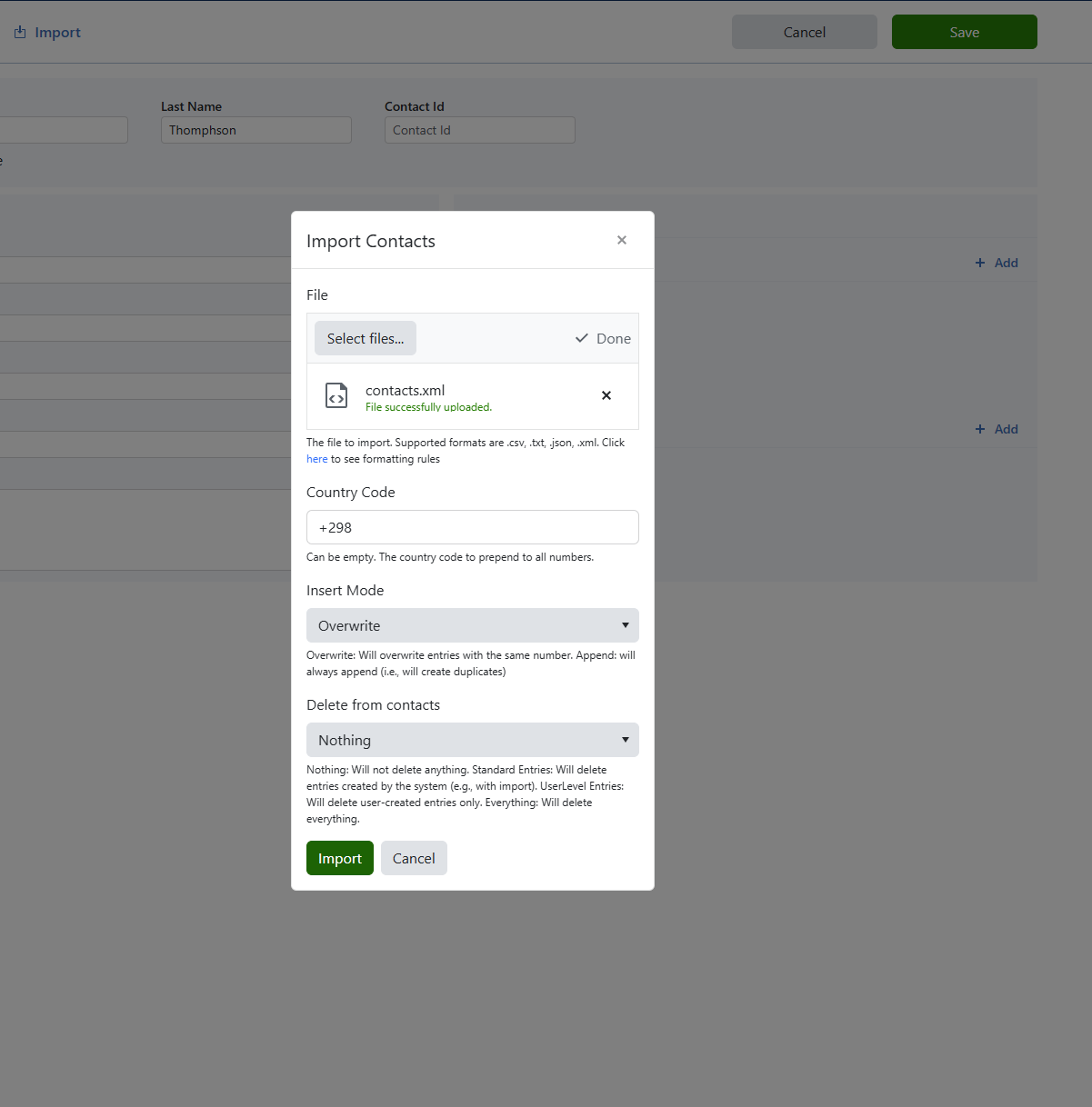
XML file being imported
vCard file being imported
Importing CSV files
When importing from CSV files, you have three extra parameters to specify:
Header
Does the first line of the file show the name of the columns (i.e., headers)
Delimiter
The delimiter is what separates the values in the file (default is ,)
Second delimiter
The second delimiter is what separates multiple values within a single field. To use for multiple phonenumbers or emails (default is ;)
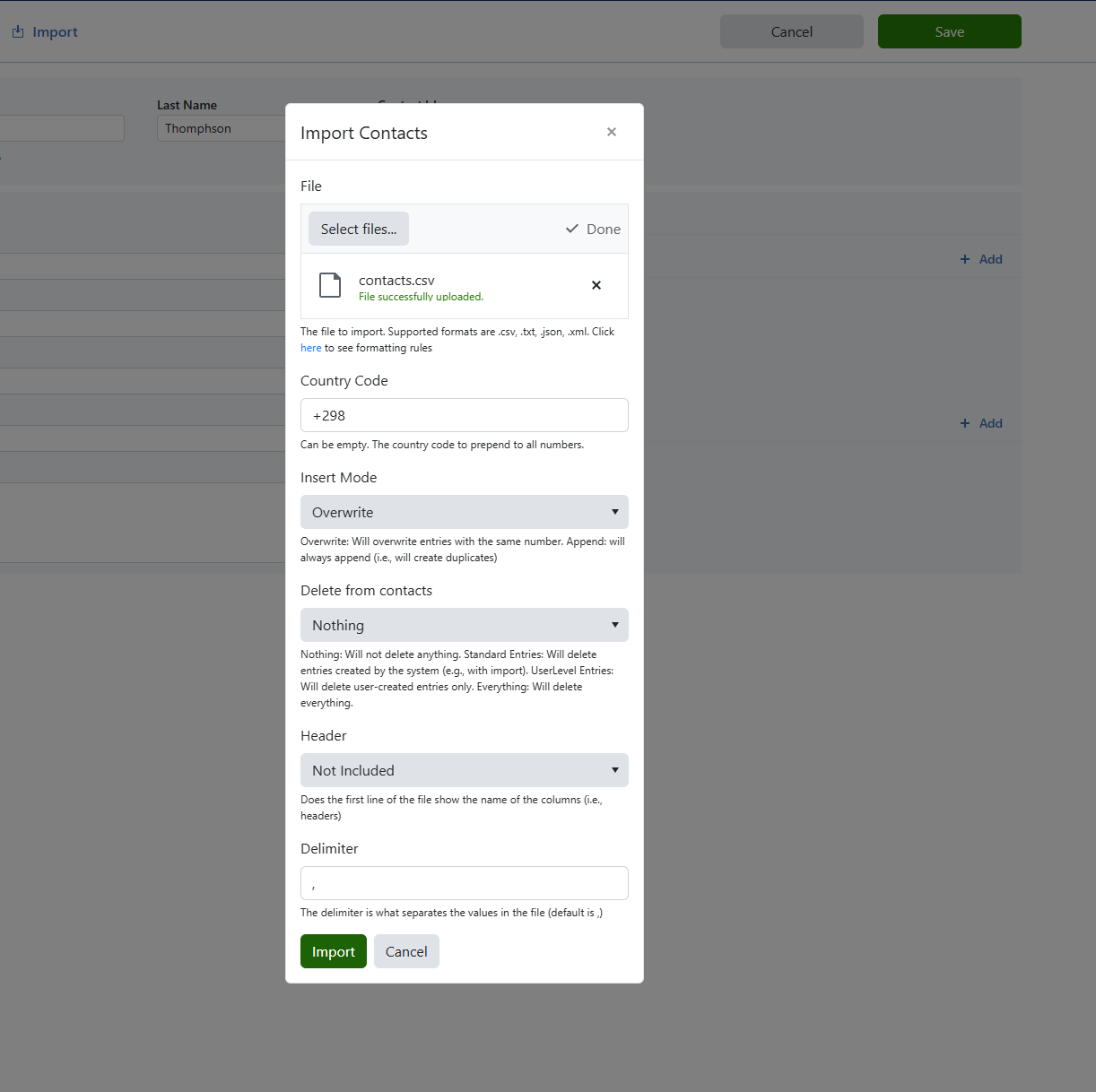
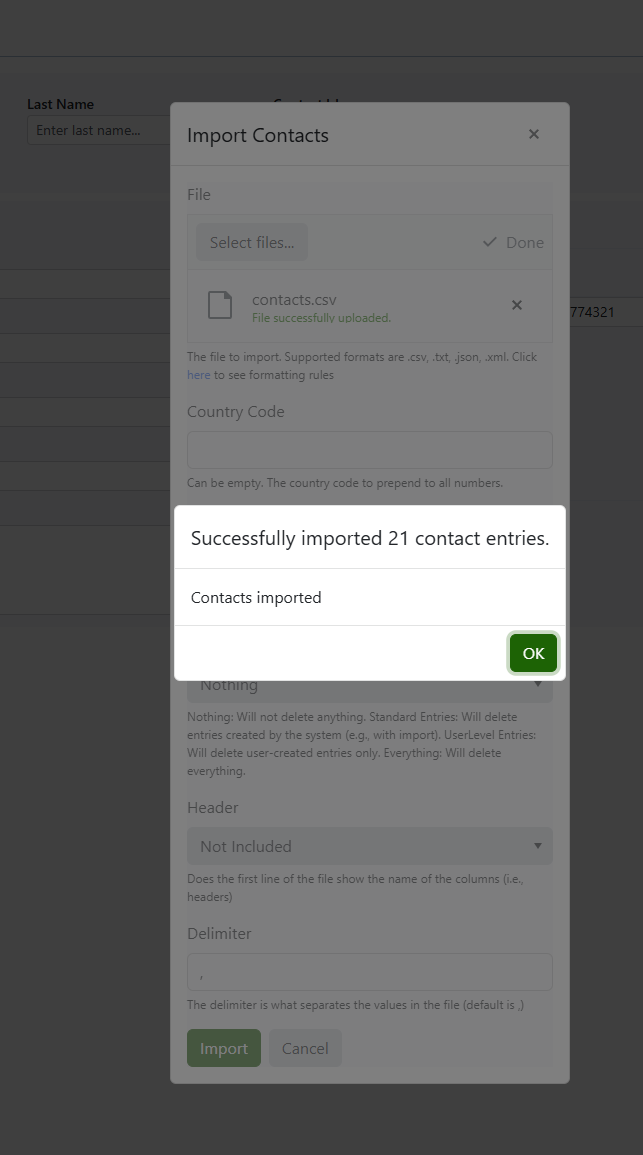
Once all parameters are set, you can press the import button, and the contacts should start importing.
Import failure
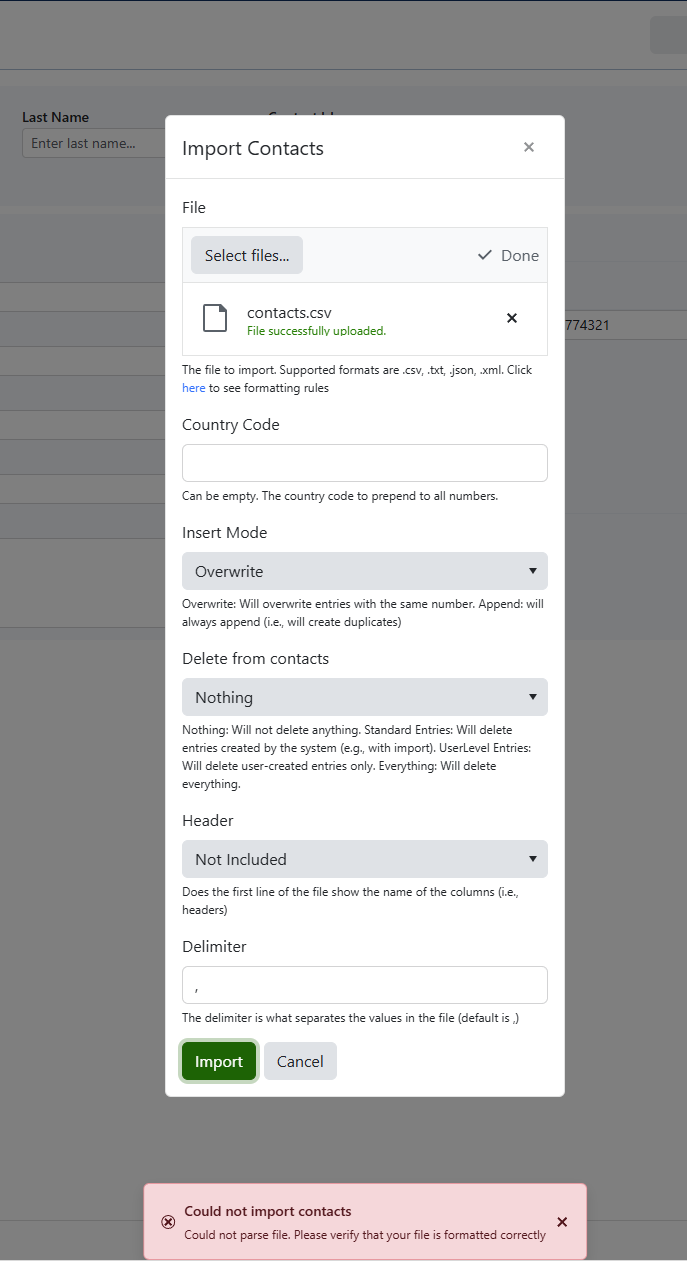
If something went wrong while importing the contacts, a popup will appear indicating the error.
An example error:
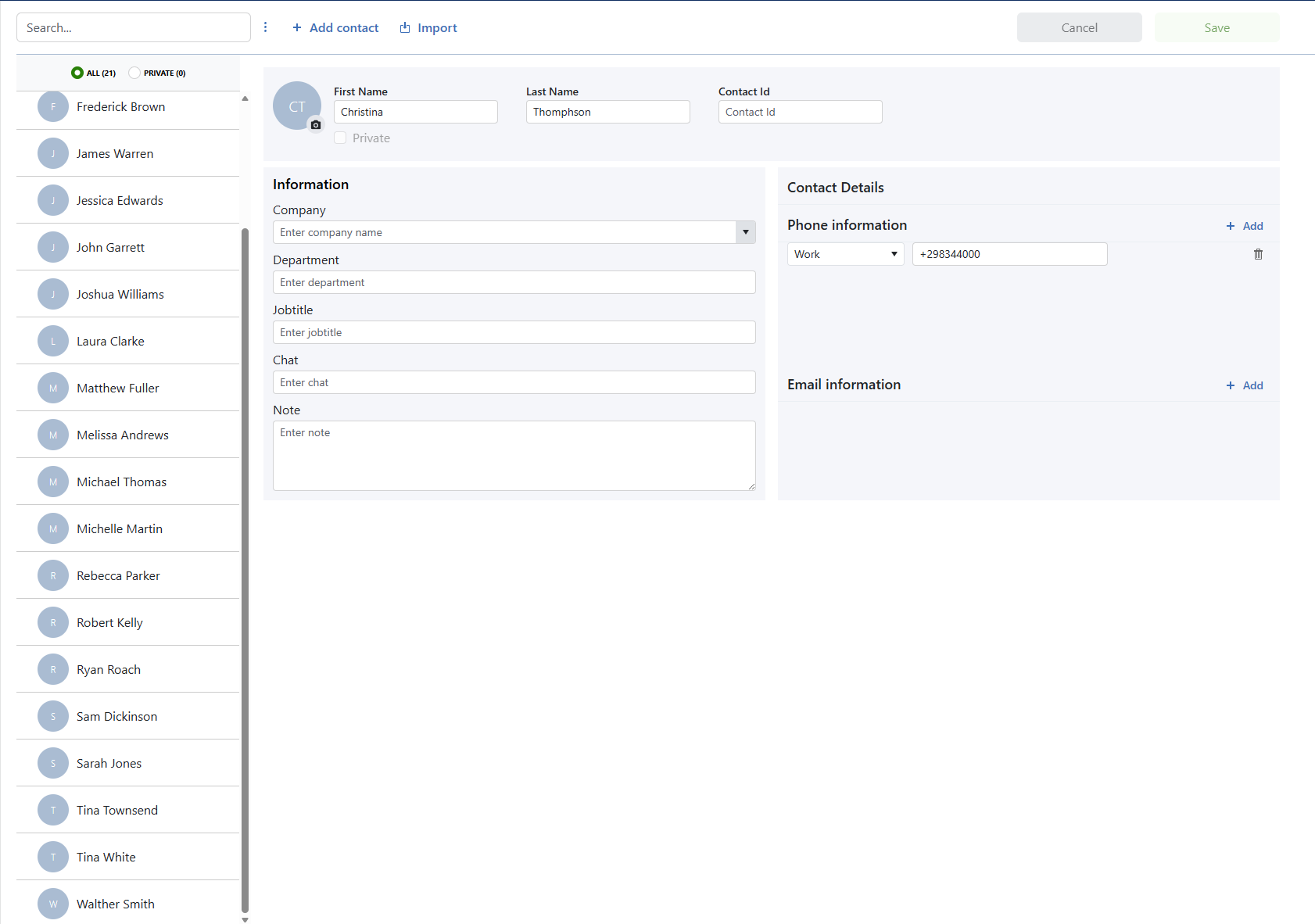
If a contacts file were to be imported e.g.
344000;Tina Townsend
344000;Christina Thomphson
344000
In this example, the last entry is missing a name, making the csv incomplete, this will result in an error:
Formatting Rules
CSV (.csv, .txt)
You can import a CSV file with or without headers. It is also possible to set what delimiter is used. A second delimiter can also be used to import multiple phonenumbers or emails on the same contact.
Column order should be: Number, Name Extra optional fields can also be added in the following order: Lastname, Email, ContactId, Company, Division, JobTitle, Chat, Note. If only some of these optional fields should be used include them all with empty values for the ones missing. Also an empty field must be added between Name and Lastname, previously used for Adress due to backwards compatibility.
Number,Name
535 984 7176,Lula MacSween
796 431 6052,Karlene Rault
JSON (.json)
[{
    "number": "516 806 2190",
    "name": "Felike Semeniuk"
}, {
    "number": "888 691 5223",
    "name": "Zacharia Scourfield"
}]
XML (.xml)
XML data can be with attributes or elements
<PhonebookImportItems>
    <PhonebookImportItem Number="516 806 2190" Name="Felike Semeniuk" />
    <PhonebookImportItem Number="888 691 5223" Name="Zacharia Scourfield" />
</PhonebookImportItems>
<PhonebookImportItems>
    <PhonebookImportItem>
        <Number>516 806 2190</Number>
        <Name>Felike Semeniuk</Name>
    </PhonebookImportItem>
    <PhonebookImportItem>
        <Number>888 691 5223</Number>
        <Name>Zacharia Scourfield</Name>
    </PhonebookImportItem>
</PhonebookImportItems>
vCard (.vcf)
BEGIN:VCARD
VERSION:4.0
N:Semeniuk;Felike;;;
FN:Felike Semeniuk
ORG:Acme Corp;Sales
TITLE:Manager
TEL;TYPE=WORK,VOICE:516 806 2190
TEL;TYPE=WORK,VOICE:658 256 2568
EMAIL:Semeniuk@acme.com
EMAIL:Semeniuk.private@example.com
IMPP:Semeniuk@chat
NOTE:This is a note
UID:I12345
END:VCARD