External Contacts
On the Totalview Contacts tab, it is possible to search for external contacts.
These are Totalview global contacts, that are configured on the WebAdmin Contacts’ page.
Unlike Totalview colleague and call group contacts, the external contacts are not stored on the device, but are fetched from the Totalview server when searching for them.
Overview
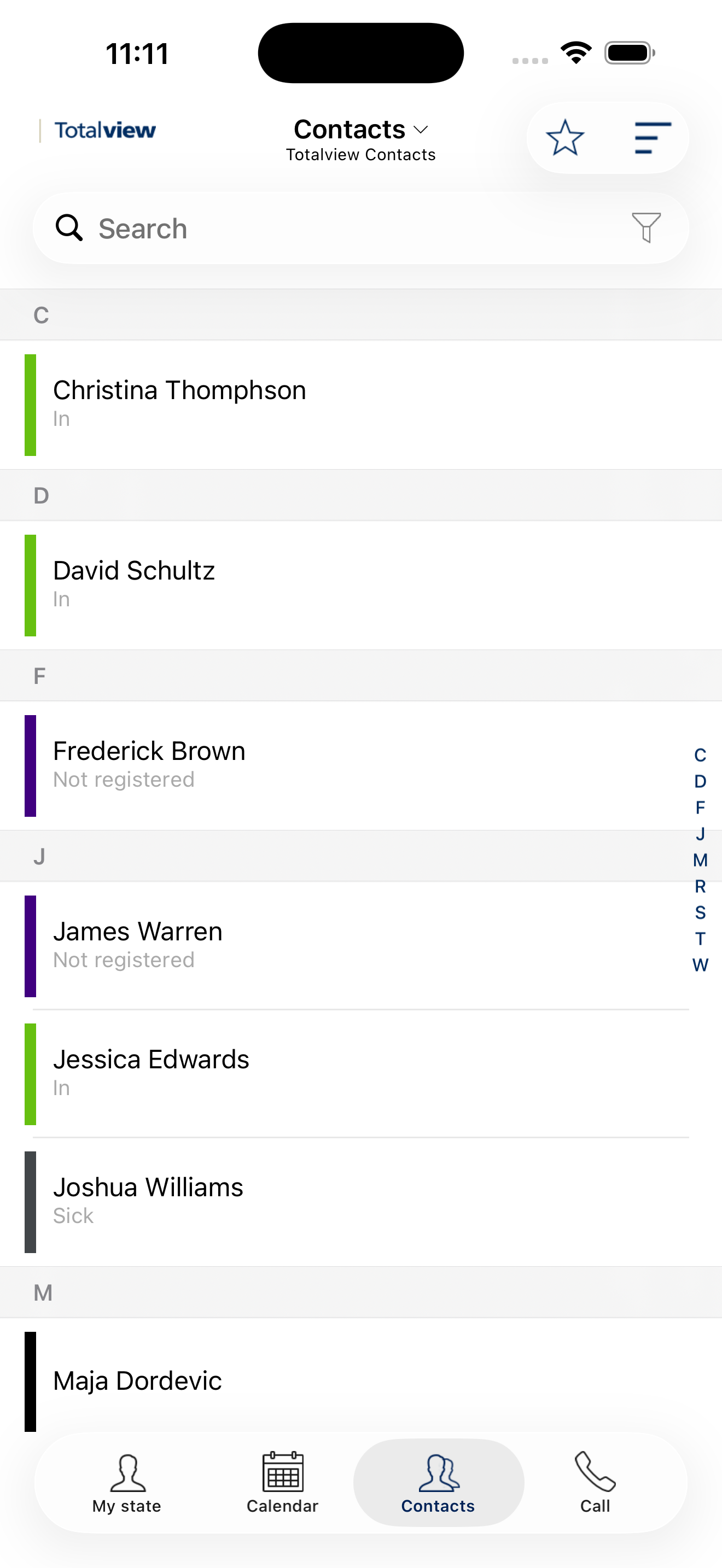
On the Overview of the Contacts tab, there is a search bar where it is possible to search for Totalview, Phone, or External contacts.
Searching for External Contacts
To search for external contacts, tap the search icon and then select the external contacts button.
External contacts can be searched using any of the following:
Search field |
Description |
|---|---|
Name |
Contact’s name |
Company |
Contact’s company |
Department |
Contact’s department |
Job title |
Contact’s job title |
Contact identifier |
Contact’s contact identifier |
Phone number |
Contact’s phone number |
Email address |
Contact’s email address |
Any contacts matching the search criteria will be displayed in the contact list.
Each result includes the contact’s name, phone numbers, company, department, job title, and email address.
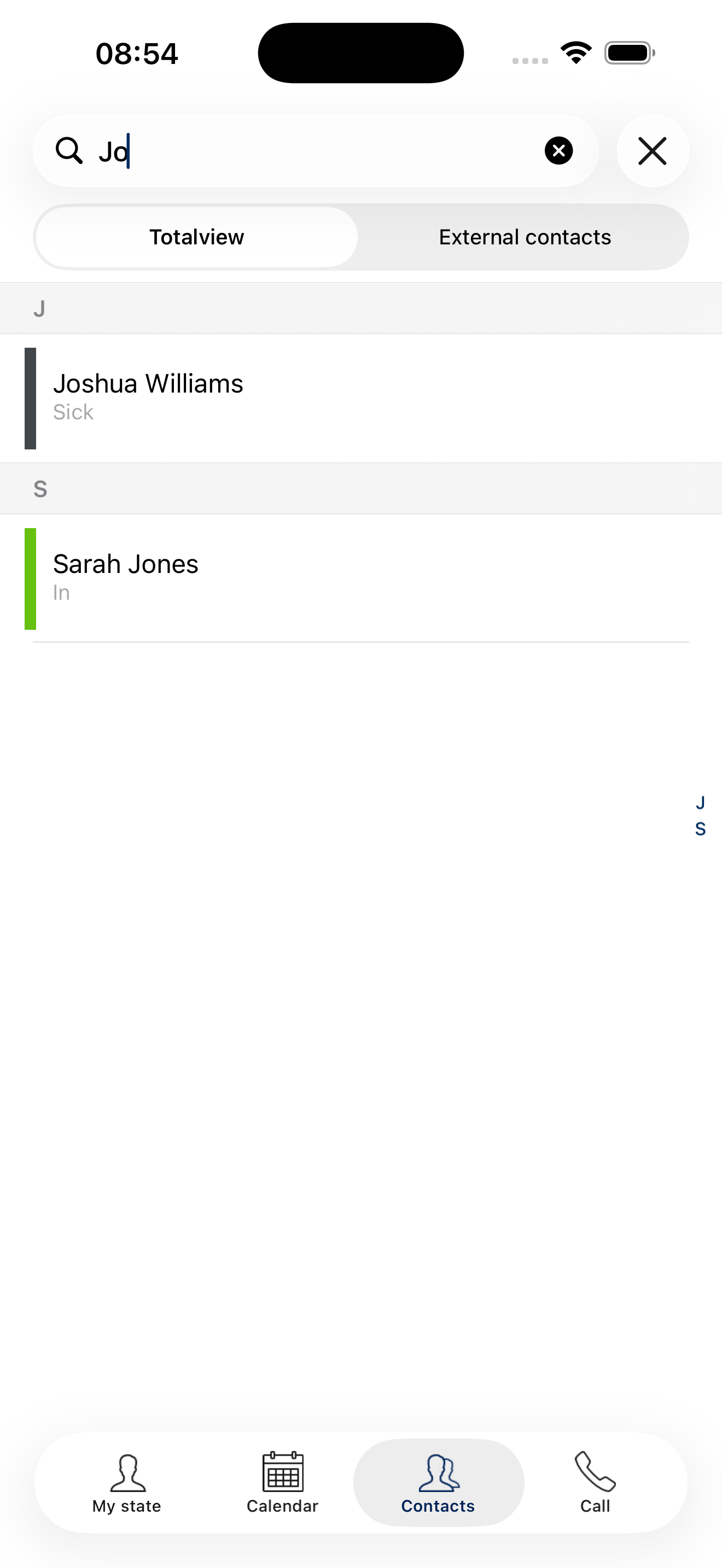
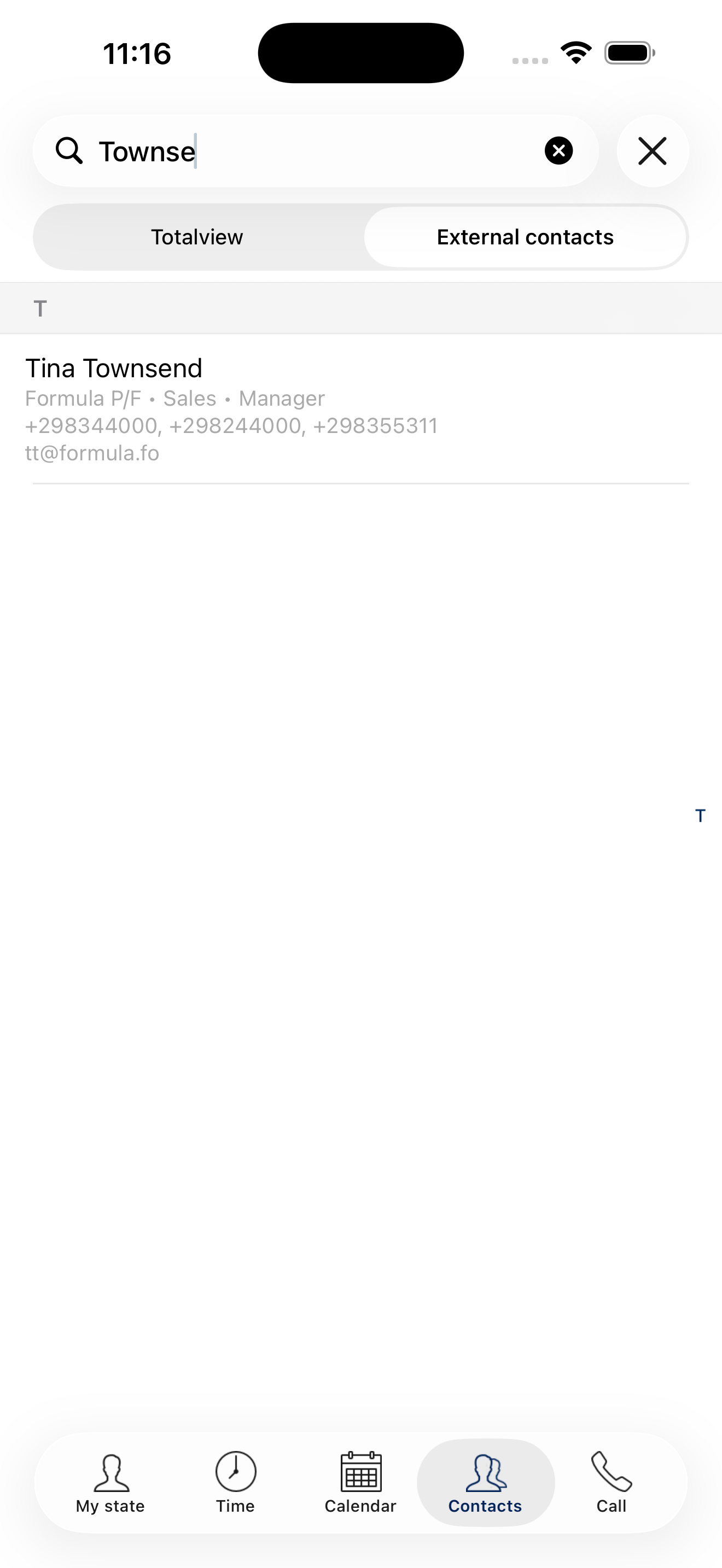
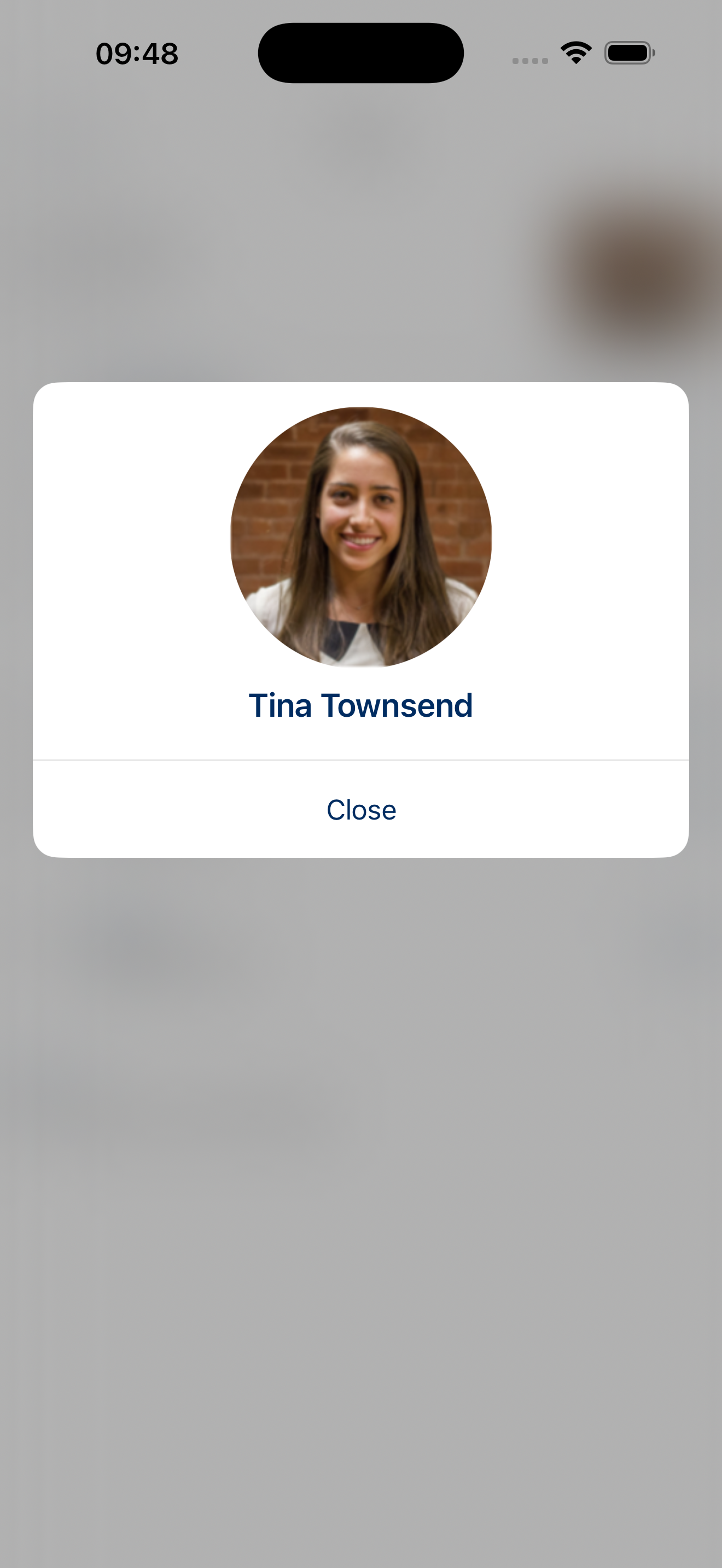
Similar to colleague and call group contacts, external contacts can have contact images, which is enabled on the Settings page of the app.
Details
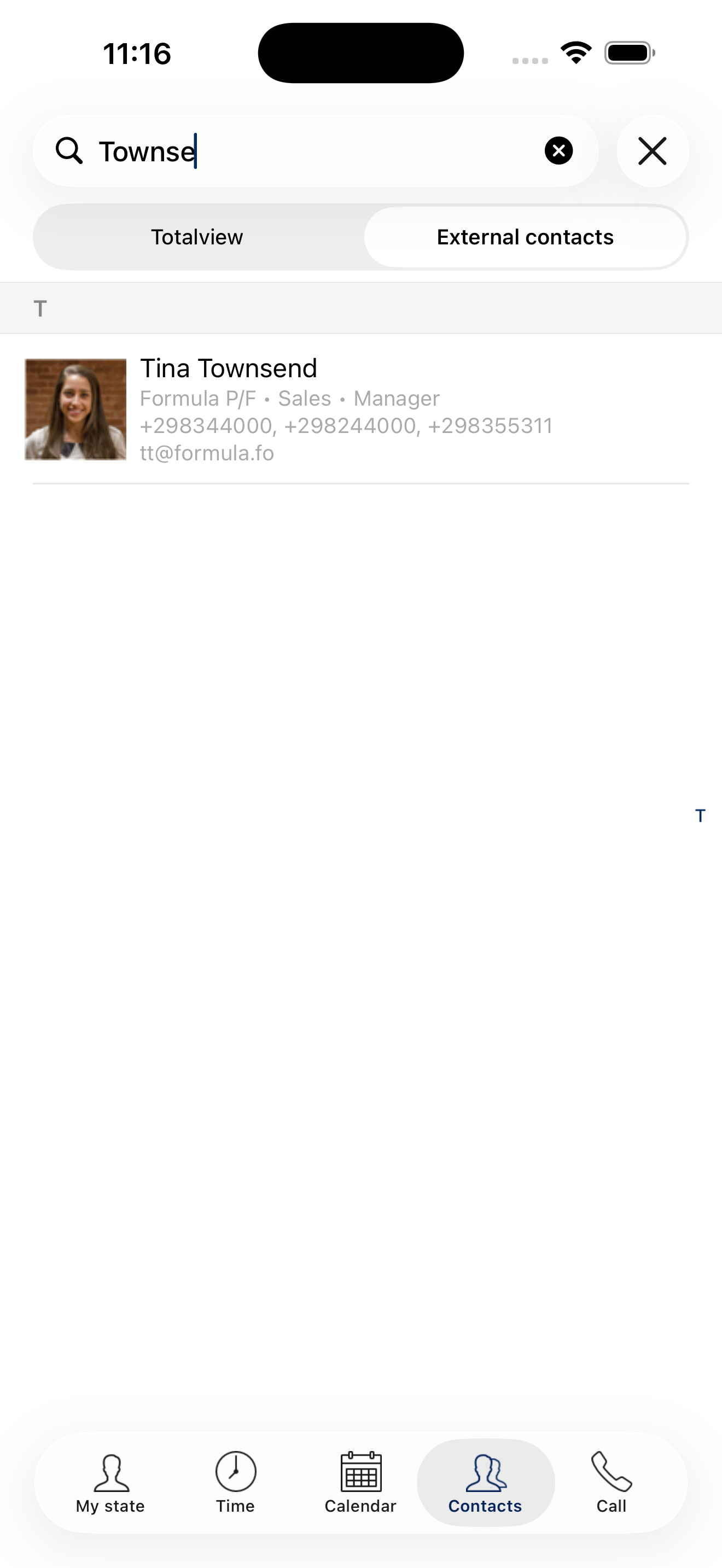
When tapping a contact in the search results, the contact’s details are displayed on the details page.
This provides an overview of the available information for the selected contact and allows you to interact with the contact directly from the details page.
Contact information
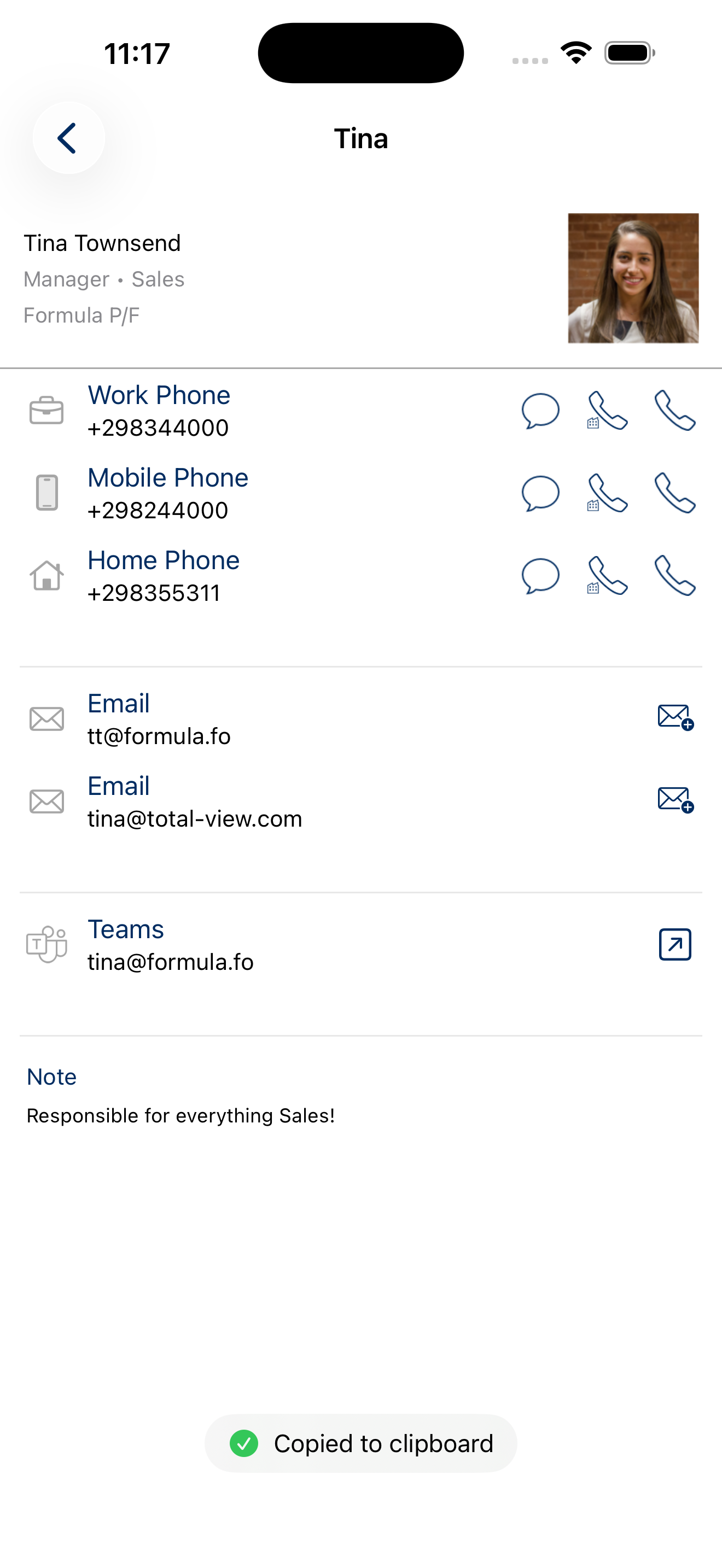
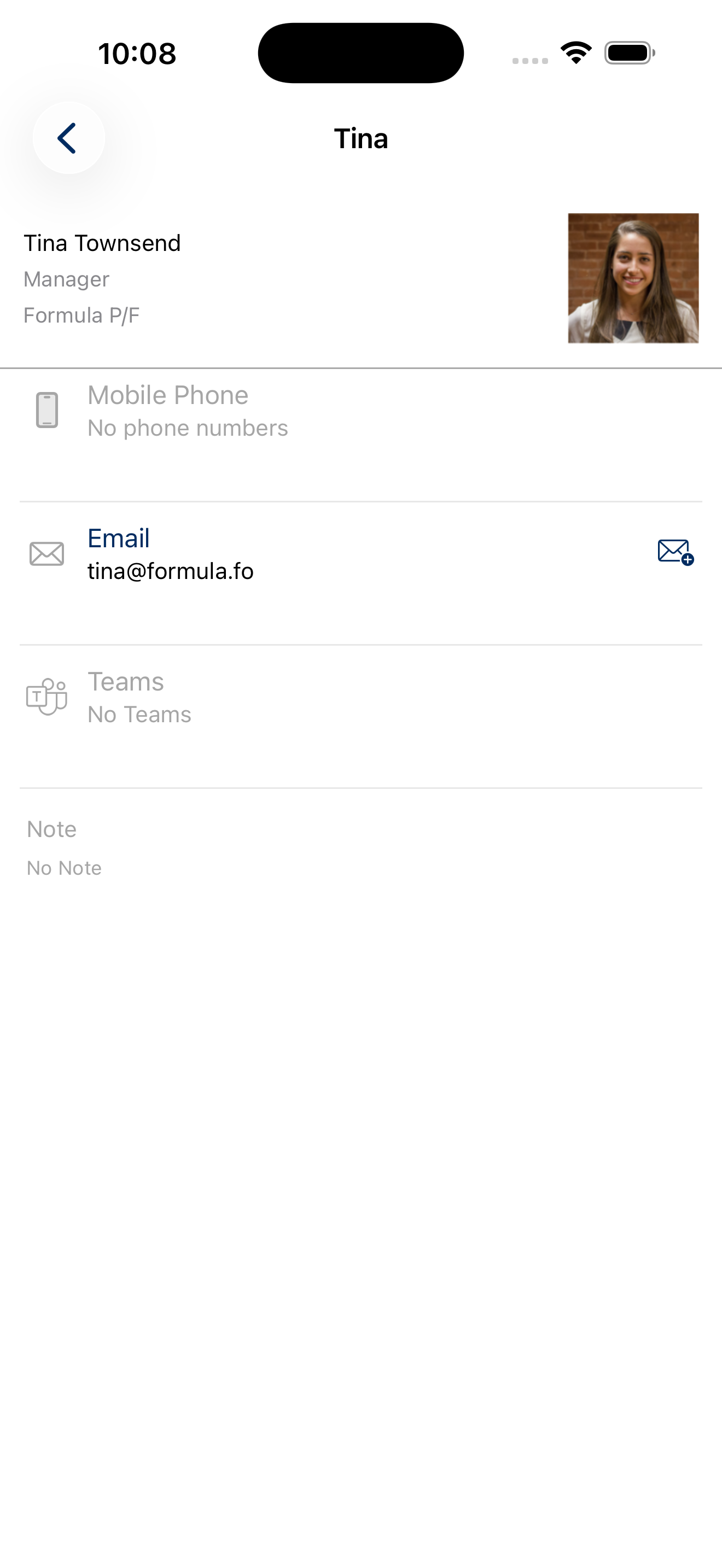
The details page can include information such as the contact’s name, company, department, contact identifier, and job title, as well as their phone number, email address, Teams address, contact image, and any associated notes.
A contact can have multiple phone numbers and email addresses.
Each phone number includes an icon indicating whether it is a mobile, work, or home number.
Information |
|
|---|---|
Name |
Contact’s name |
Company |
Contact’s company |
Department |
Contact’s department |
Job title |
Contact’s job title |
Contact identifier |
Contact’s contact identifier |
Phone number |
Contact’s phone number |
Email address |
Contact’s email address |
Contact image |
Contact’s profile image |
Teams address |
Contact’s Teams address |
Note |
A note associated with contact |
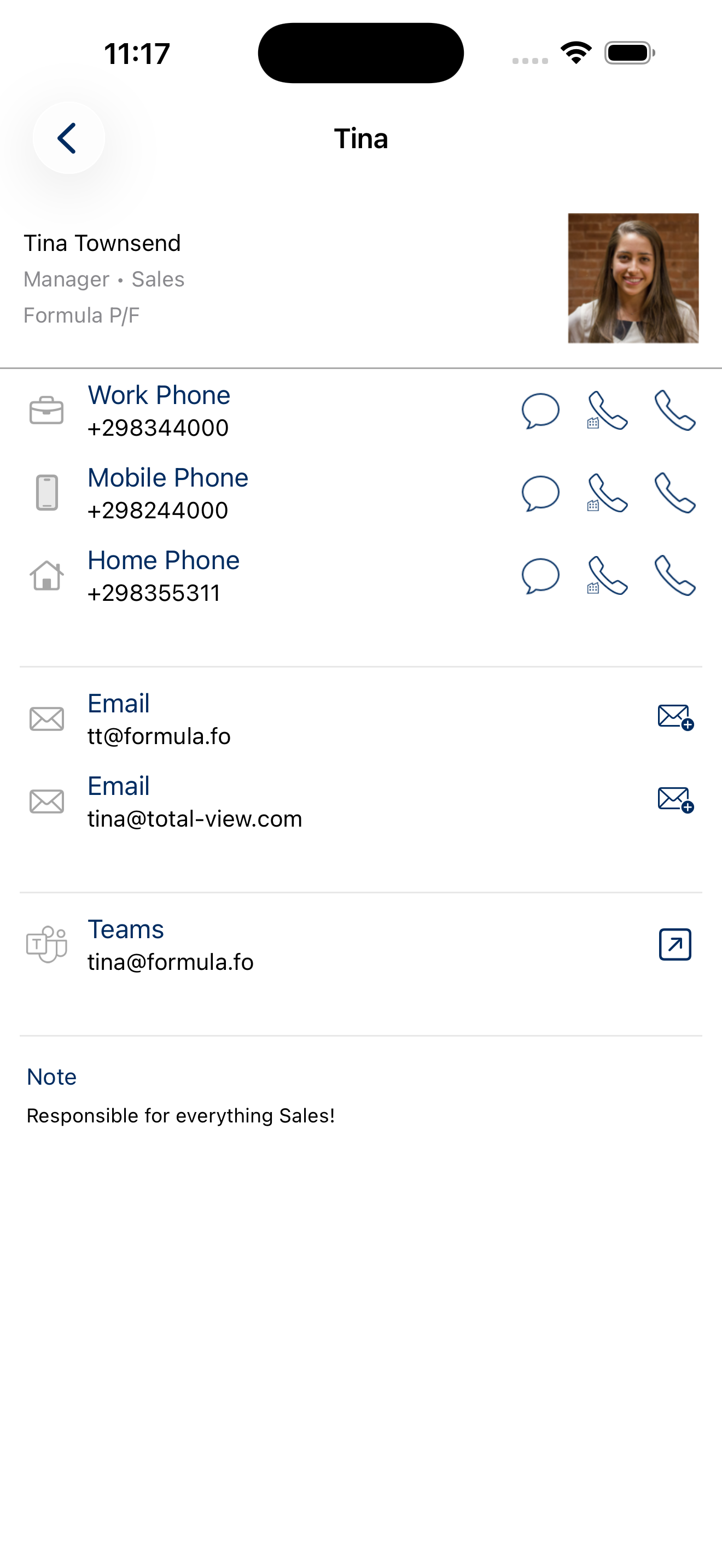
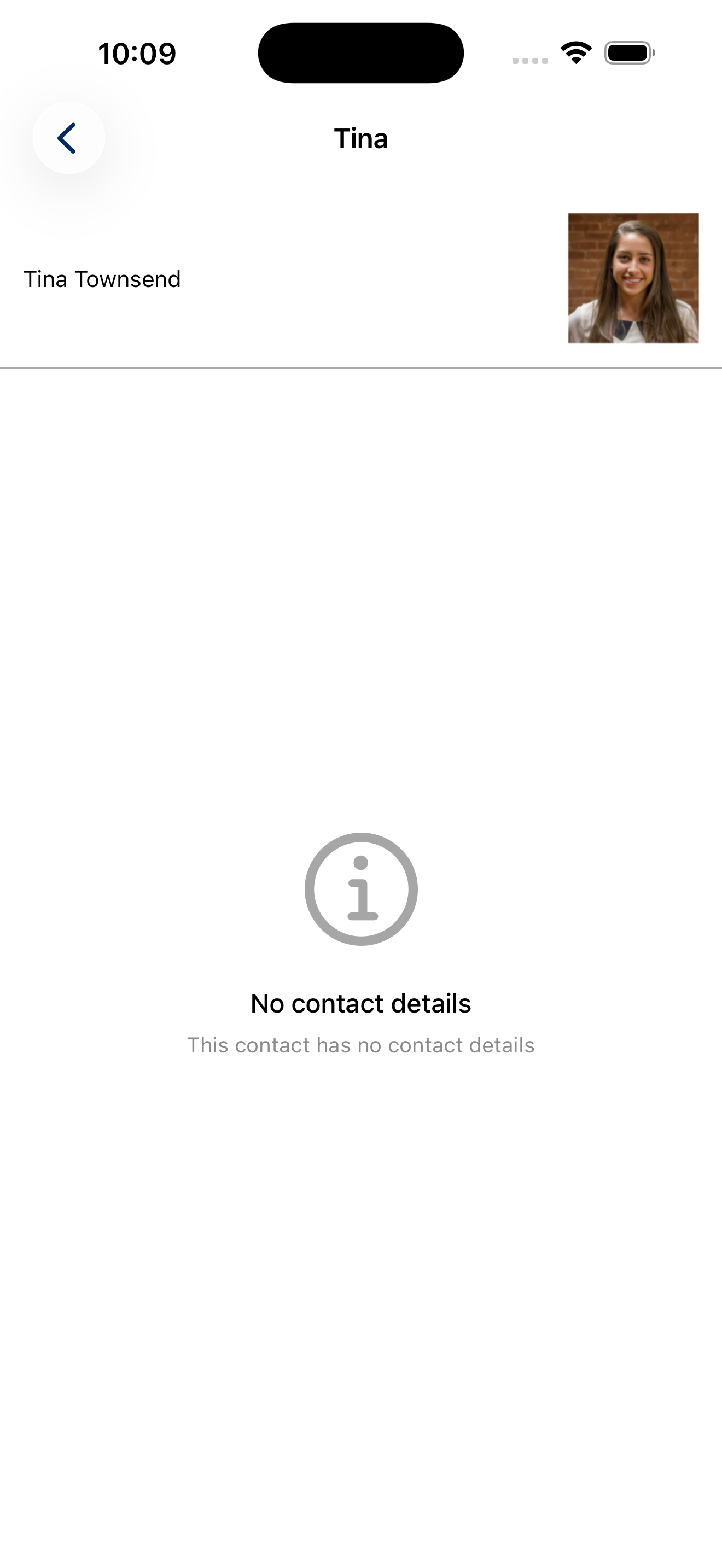
Contacts may also be private and only visible to the user that created them. In this case, the contact’s details will include a private pill icon next to the contact’s name.
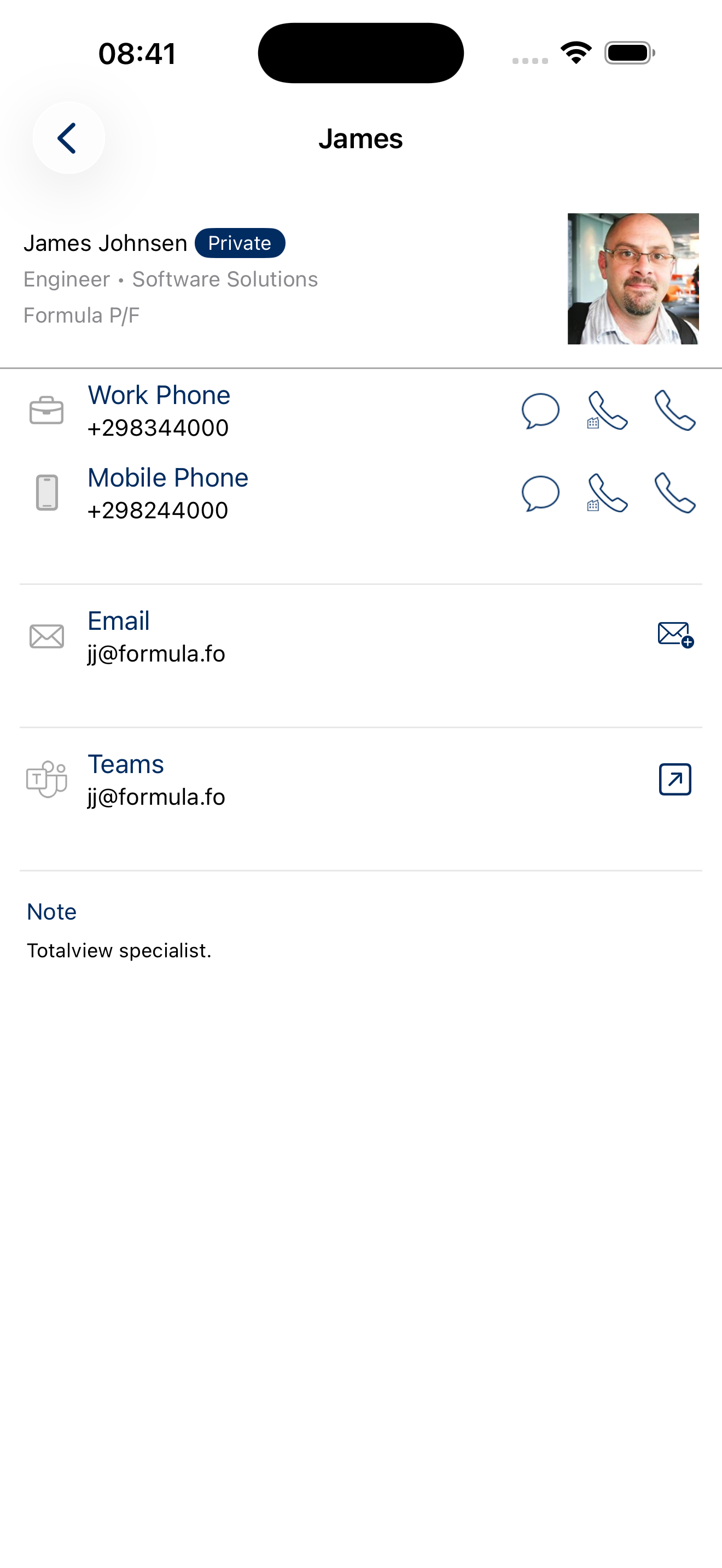
Contact actions
The details page provides several ways to interact with the contact:
Contact image: Tap the contact image to view it in a larger size.
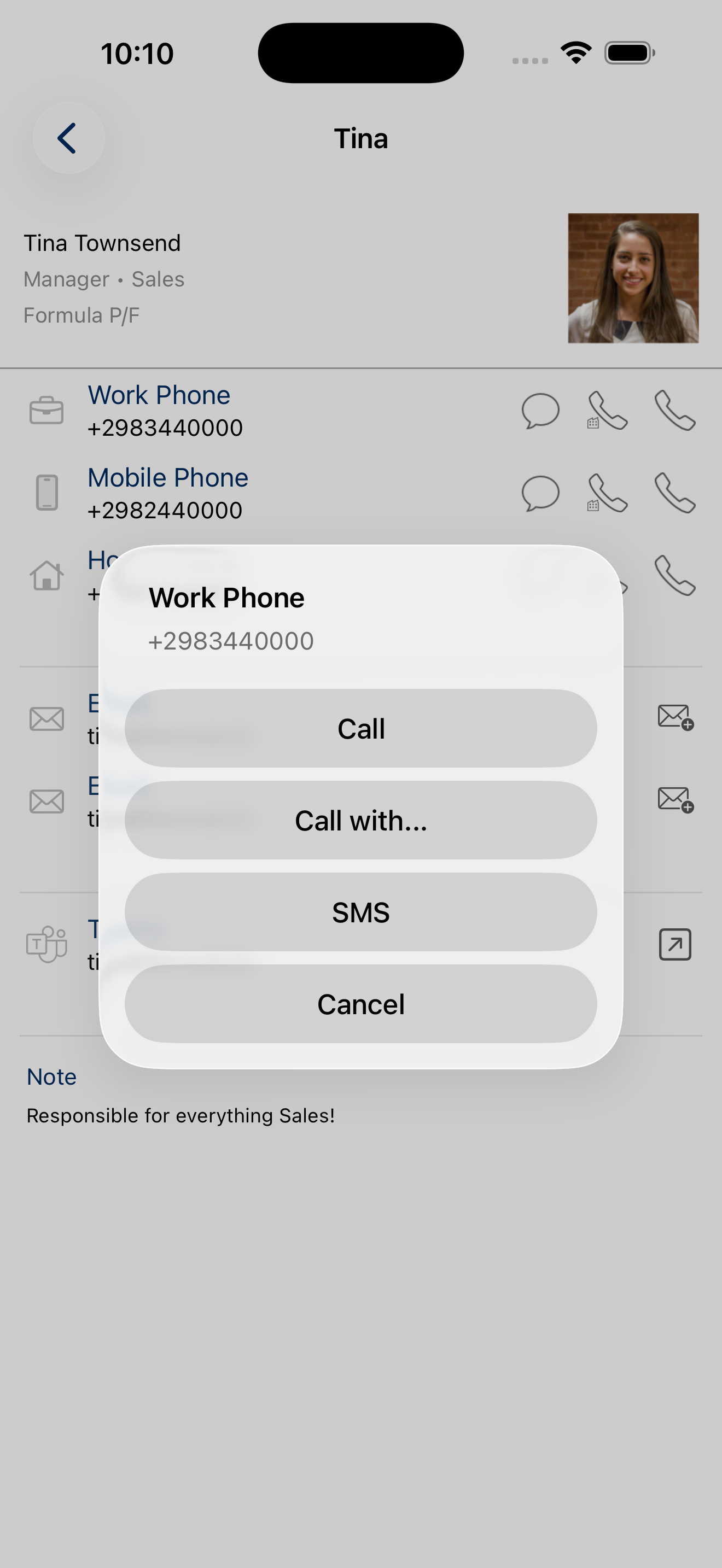
Phone numbers: Tap a phone number to choose an action, such as calling or sending a text message. The icons next to the number can be used to perform these actions directly.
Email addresses: Tap an email address to open the device’s default email application with the address populated as the recipient.
Teams addresses: Tap a Teams address to open the Microsoft Teams application, or a web browser if Teams is not available.
Copying information: Press and hold any contact information row to copy its contents to the clipboard.