Provisioning
This section explains how to provision a Totalview Doorway iPad Client.
Provisioning registers the client with the Totalview system and is required before the client can access Totalview when the server enforces provisioning.
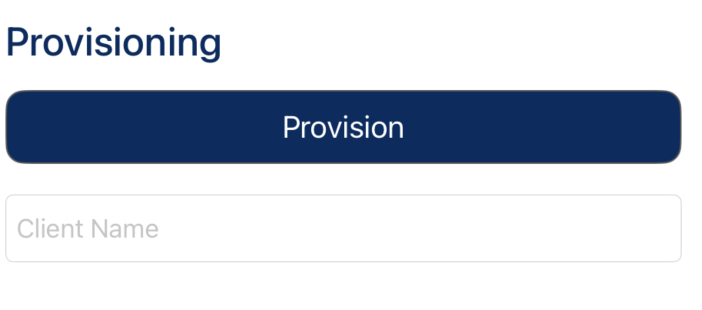
If provisioning is required, a Provisioning section appears in the settings panel, where you can provision or deprovision the client.
To provision the client, enter a name in the text field and click Provision. A dialog will open where you must sign in as an administrator to complete the process.
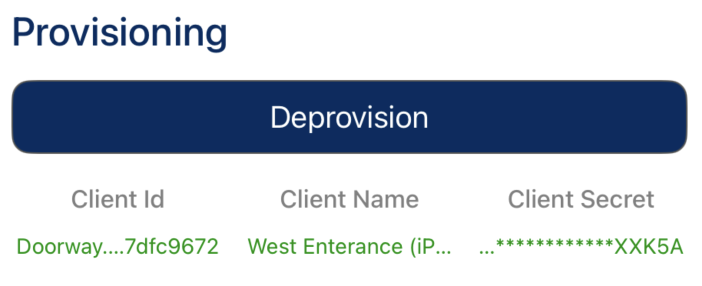
After provisioning is complete, the client appears in the Clients grid in Web Admin and in the settings panel below the Provision button as a grid. See Web Admin Clients for more details.
The grid contains the following columns:
Client ID |
Client Name |
Client Secret |
Unique identifier for the client |
Name of the client as entered during provisioning |
Secret key masked with asterisks which is used for provisioned authentication |
If the client is already provisioned, you can deprovision it from the same view by following the same steps, except you do not need to enter a client name.