
Overview
The Time Overview provides a clear visualization of a user’s daily time registrations. Users can review their own days, and - if granted the appropriate permissions - view the registrations of other users as well. Editing capabilities include deleting, splitting, merging, and copying states, along with other modification options.
The overview initially displays seven days at a time, with this interval being configurable and with the ability to navigate to previous or upcoming weeks for a broader view.
In the upcoming sections, we will delve into the specifics of managing your time registrations, including how to effectively analyze the states in Time.
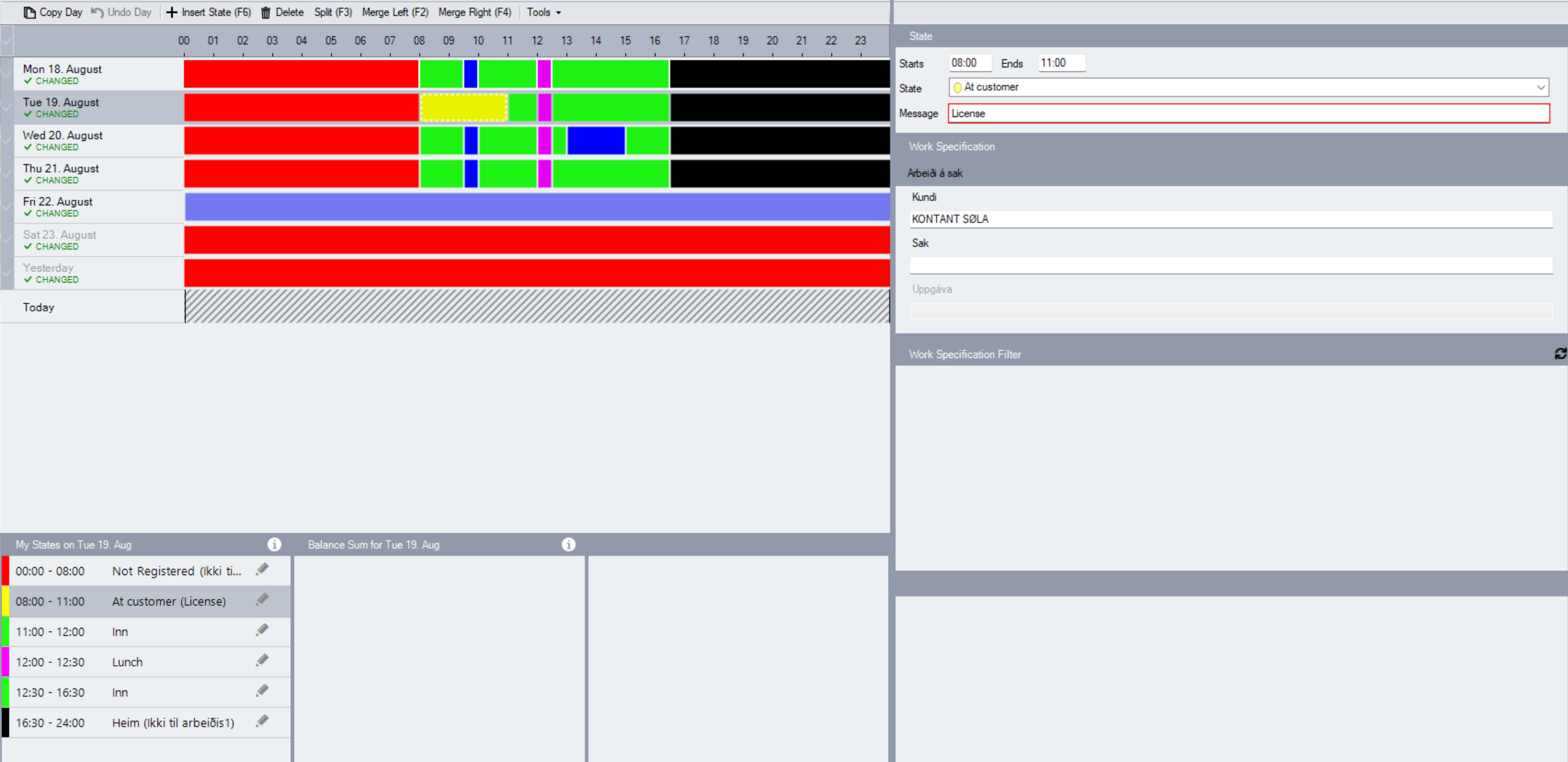
My States
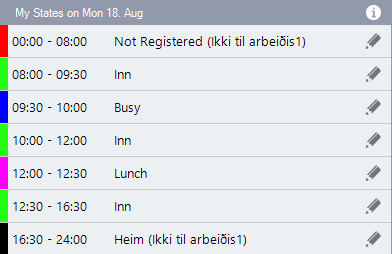
The My States section displays a detailed list of all time registrations for the selected week. Each entry shows the date, start and end times, and the specific state assigned to that period.
Additional information is provided to indicate how each state was created - whether by the Totalview System, a Smart Client, or later modified in the Time Client. Icons also highlight any states with location requirements or attachments, using the same visual style as the creation indicators.
Currently, these are the available icons in the My States section:
|
The appointment icon indicates that this state was set by an appointment. |
|
The attachment icon indicates that the state requires attachments. |
|
The client icon indicates that the state was registered in the Totalview Client. |
|
The contact center client icon indicates that the state was registered on the Totalview Contact Center Client. |
|
The door client icon indicates that the state was registered on the Totalview Door Client. |
|
The edit icon indicates that the state has been modified in Totalview Time. |
|
The external icon indicates that the state was registered by an external system. (for example 3CX, TELEPO, etc.) |
|
The location icon indicates that this state has specific location requirements. |
|
The next state icon indicates that a previous state required that it changed to this state afterwards. |
|
The reception icon indicates that the state was registered on the Totalview Receptionist or Switchboard Client. |
|
The SharePoint client icon indicates that the state was registered on a SharePoint client. |
|
The smart client icon indicates that this state was registered on a smart client. |
|
The SMS icon indicates that the state was registered via SMS. |
|
The system icon indicates that the state was registered by the system. |
|
The time client icon indicates that the state was registered on a time client. |
|
The web icon indicates that the state was registered through a web client. |


State
In the State section, you can edit the type of state assigned to a registration. The behavior of the fields varies depending on whether the state requires attachments, location coordinates, or comments. For states that include attachments, the Work Specification section will display additional details related to those attachments.
If a state includes location coordinates, you can click the location link to open Google Maps and view where the registration occurred. The field will display either the location name or the coordinates.
Note: The location of a registration cannot be edited or removed once it has been recorded initially.

