Navigating the Call Log
The call log shows your most recent incoming, outgoing, and missed calls, including both device calls and queue calls (queue calls are associated to a call group).
Note: The call log only displays Totalview calls, and not calls from your device’s call log. This means that a call needs to be received through Totalview for it to be shown in this call log.
- In the call log you will be able see details about the call, such as
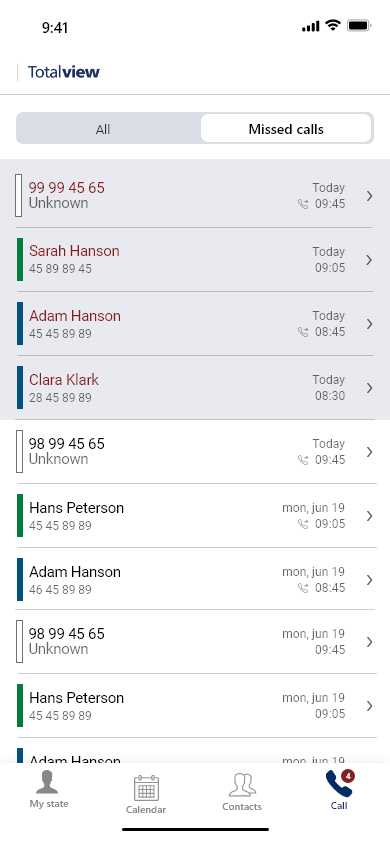
Caller name - The caller name color indicates if it was a missed call or not. Red meaning missed
Phone number
Queue call or device call - Queue calls are indicated by a headset icon on the 2nd line. Device calls have no icon there - Queue calls show the name of the queue and number (if available)
If it was a outgoing call or incoming call. - Outgoing calls are indicated with a right arrow. - Incoming calls have no icon (except for unanswered queue calls that display a red missed icon)
Date of when the call started
Time of when the call started
State color (if known by Totalview)
Note: The above is how Totalview contacts are displayed. When it’s not a Totalview contact, the state color and caller name are not included and will be displayed differently in the list.
It is also possible to sort the call log, so that it only shows missed calls by tapping the “missed calls” button. To display all calls again, tap on the “all calls” button. To search the call log, you may either use the search button at the top or dialpad at the bottom, which will search through the call log for anything that matches the search query.
To view more information regarding the caller, you may tap the arrow to the right of the call, to open the contact details page. The contact details page is explained more thoroughly in the contact details section.
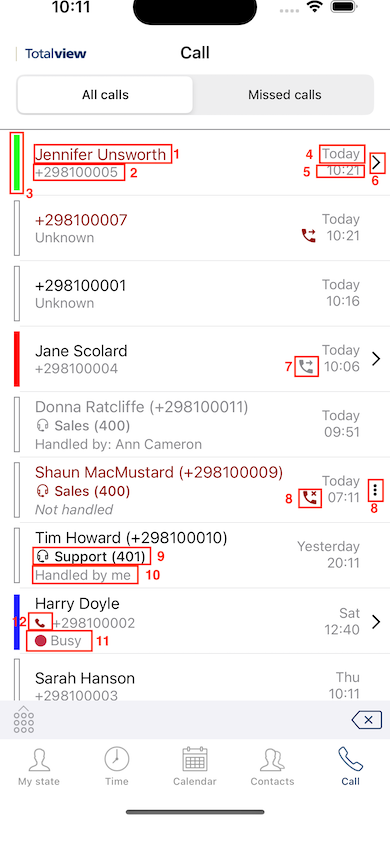
Caller name
Phone number
State
Date
Time
Open contact details (when contact is known)
Outgoing call
Indicates missed queue calls
Queue name and number
Handled by or unhandled
Presence state of a known contact
In-a-call indicator
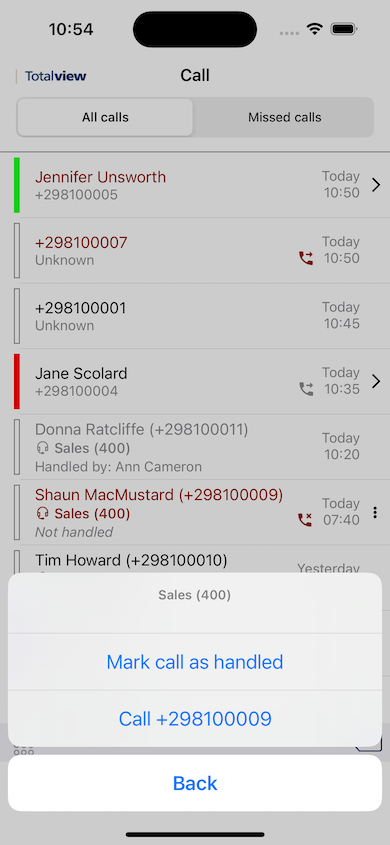
You can mark a missed queue call as handled by pressing the vertical dots button on the right hand side. In the action sheet menu below you press ‘Mark call as handled’.
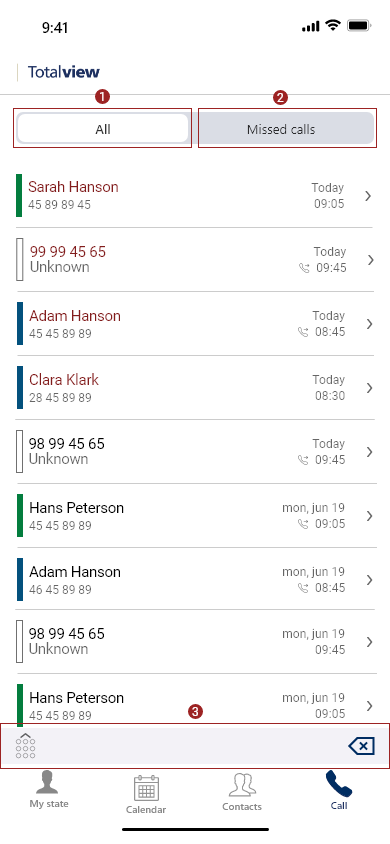
Show all calls.
Show missed calls
Dialpad
The call log also marks incoming missed calls as unseen, until the user been on the call log to view the call This is displayed as a notification indicator on the navigation bar call icon, as well as a highlighted background inside the call log page. To clear the notification, simply navigate to the call log page and away again.
Note: Outgoing missed calls are not marked as unseen. Only incoming missed calls.
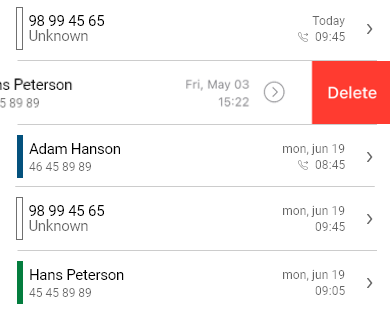
To remove calls from the log then swipe left on the item to reveal a delete button and then press the button. Alternatively swipe fully from right to left.