To use Entra ID in Azure for user synchronization, it is necessary to expose the LDAPS API from Azure.
This can be done by enabling Microsoft Entra Domain Service for a domain.
Preparation
A domain name must be chosen. See the guidelines during the creation process if in doubt about what to choose.
Would typically be the same as the Primary Domain name, under Entra ID configuration.
A public DNS name for the Microsoft Entra Domain Service should be decided. Can be ldaps.<domain name from previous step>.
The ldaps.<domain name> must be registered as a public A Record in customer’s DNS.
The private key (pfx file) for a valid TLS (https) certificate for the selected DNS name should be acquired. Wildcard certificates can be used.
Steps
Search for “Microsoft Entra Domain Services”.
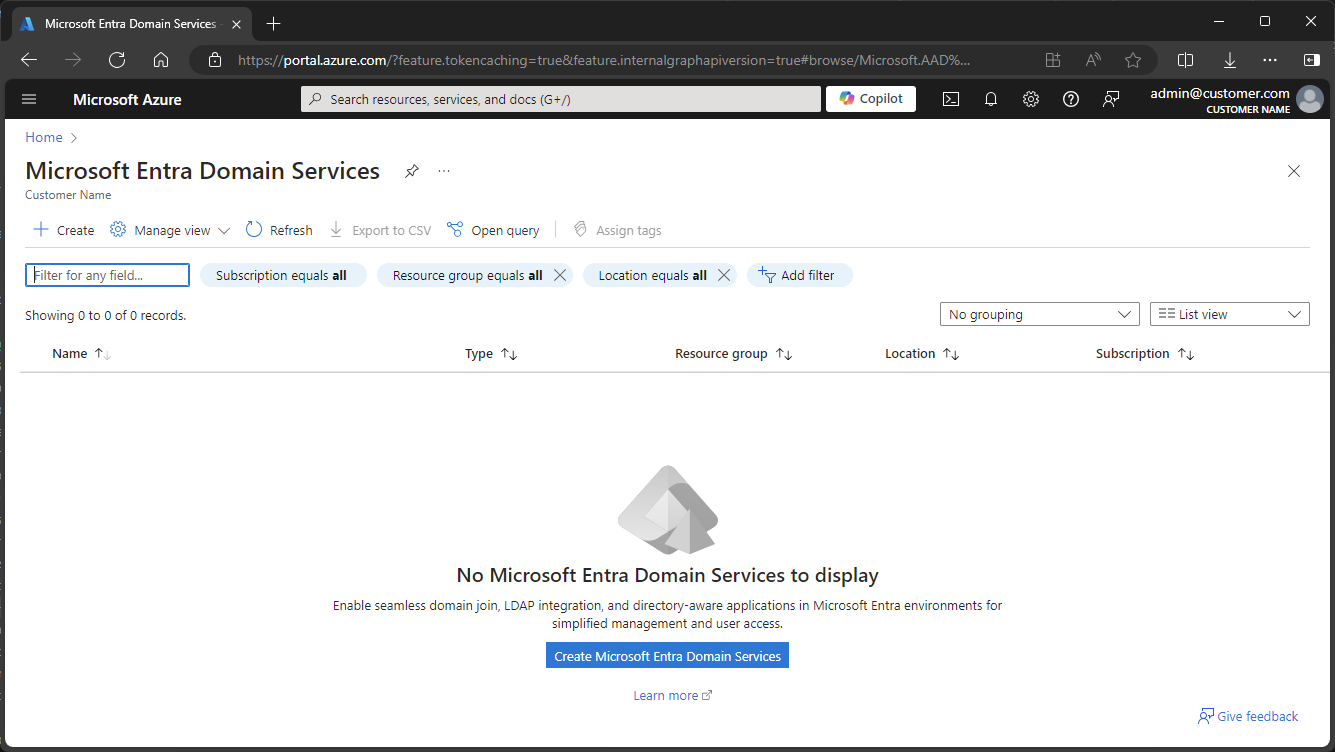
Press the Create button and follow the steps.
Under Basic, Select Standard SKU.
Under Networking, Accept the choice to create new virtual network and subnet to place the Microsoft Entra Domain Service in.
In the remaining tabs, accept default configuration.
After creation there might be a diagnostics warning regarding missing DNS for virtual network that the Microsoft Entra Domain Service is in.
Resolve this automatically by opening the Configuration Diagnostics page.
Go to Settings->Properties page.
Find the value for “Secure LDAP external IP addresses”.
Register this IP as DNS A-Record for the selected DNS name for the LDAPS Microsoft Entra Domain Service, from the preparation phase.
Go to Settings->Secure LDAP page.
Enable “Secure LDAP”
Enable “Allow secure LDAP access over the internet”
Upload the .PFX file with secure LDAP certificate
Enter the password to decrypt .PFX file
Press Save.
Go to the Network Security Group configuration that the Microsoft Entra Domain Service is placed in.
Add an “Allow” rule that allows inbound traffic on port 636 to the Network Security Group.
If the source IPs of the inbound LDAPS traffic is known, then this should be included in the rule.
Go to Settings->Health page.
Wait for Initial Synchronization with Azure AD to complete - could take more than an hour.
Create the technical user that should be used for identifying against Entra ID.
Password should never expire.
User should at least have license “Azure Active Directory Basic”
To make sure LDAP synchronization works, it is necessary to reset password for the user, after the Microsoft Entra Domain Service was created.
After password reset, wait until next time Microsoft Entra Domain Service synchronizes with Entra Id.
Keep an eye on Settings->Health Page.
After synchronization, the password reset should have come into effect.
Remote desktop into the environment where the Totalview AD connector will run.
Open Totalview AD Connector Tester (InstallFilesADTotalviewADTester.exe).
Type in the following:
LDAP server (domain or IP):
LDAP://<dns name for the DNS A-record registered previously>:636
Authentication type: <default>
Password: Password for the login user.
Press Connect button.
If successful, the label below “Username” should show “LDAP connection: Connected … “.
Press “Show Root” to check that it is possible to read data.
Now LDAPS configuration in Microsoft Entra Domain Service is completed, and it should work to configure Totalview AD connector to synchronize with Totalview.
Remember to register the LDAPS certificate in a certificate monitoring system, so it gets updated before expiration.