Konnekta
It is possible to make use of the following functions in Konnekta Phone Options.
The options in this menu can be modified from the PC client as well. Pull to refresh the main page to see changes in the phone options.
Forwarding
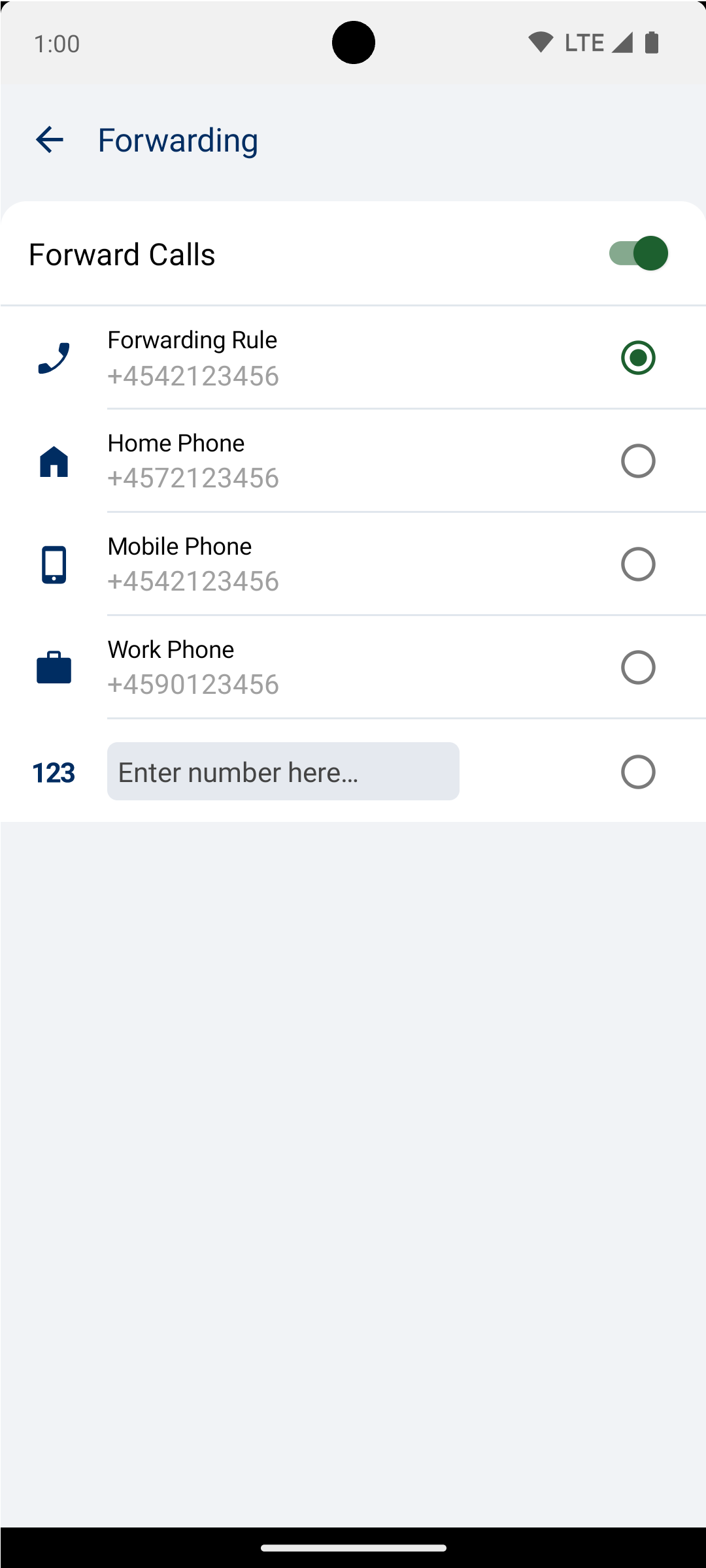
The forwarding section includes the functions to forward all calls to certain numbers specified by your user configuration. It is also possible to forward calls to a custom number that you can specify or voice mail.
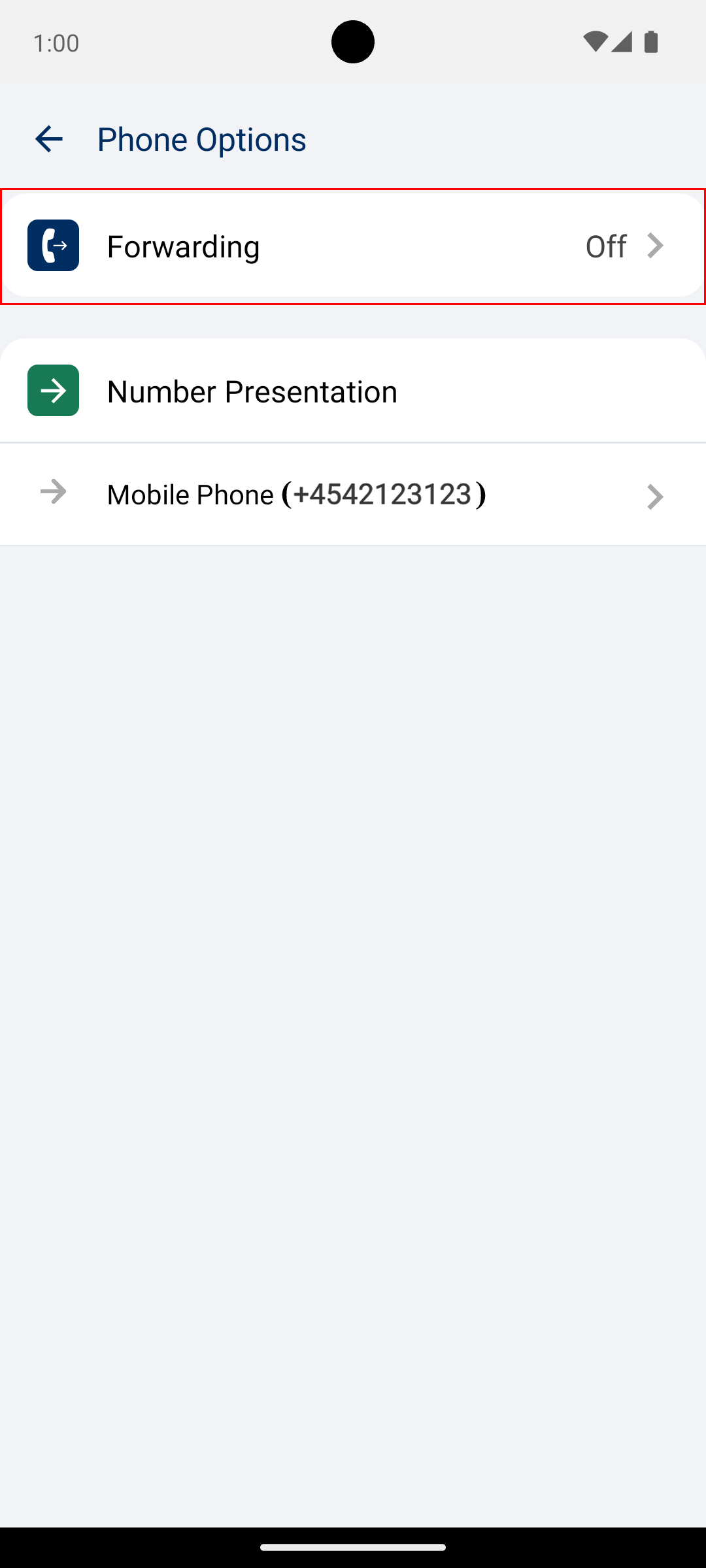
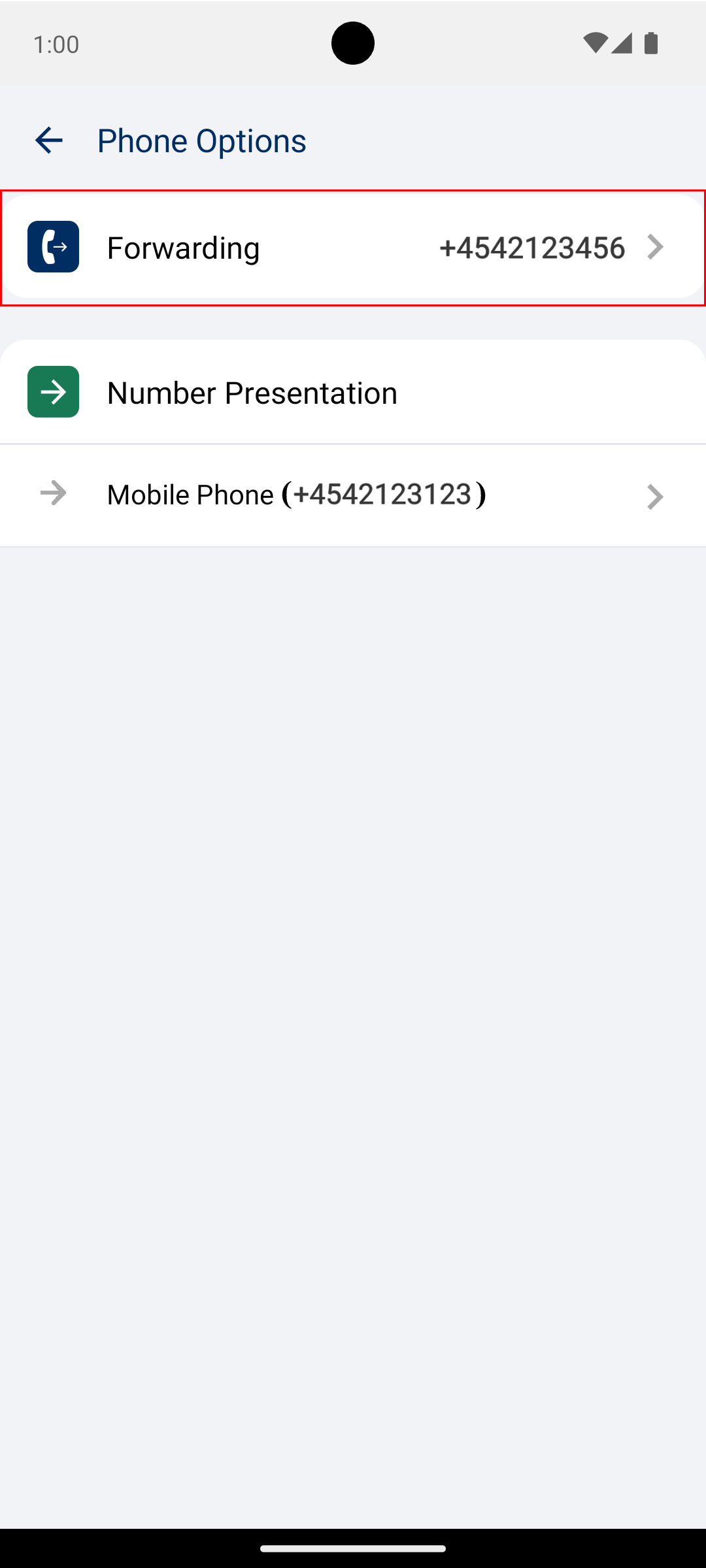
To start forwarding, all you need to do is toggle the forwarding button at the top right or click on a radio button to the right of any forwarding option. When forwarding has been selected, the previous screen will indicate which forwarding was selected which also will be shown on the contact header on viewing the Current State.
Forwarding can also be set when specifying your own state.
There are a couple of icons to make note of, when looking through the forwarding options. These forwarding options are set externally mostly, except the custom number, which can be set both on the app as well as on the PC client. The other forwarding options could be your work number, mobile, local number or other numbers specific to your user.
|
The home icon indicates that this is a home phone number. |
|
The mobile phone icon indicates that this is a mobile phone number. |
|
The work icon indicates that this is a workplace phone number. |
|
The phone icon indicates that this is any phone number. |
|
The custom number icon indicates that this section is possible to customize and change the forwarded number. |


Number Presentation
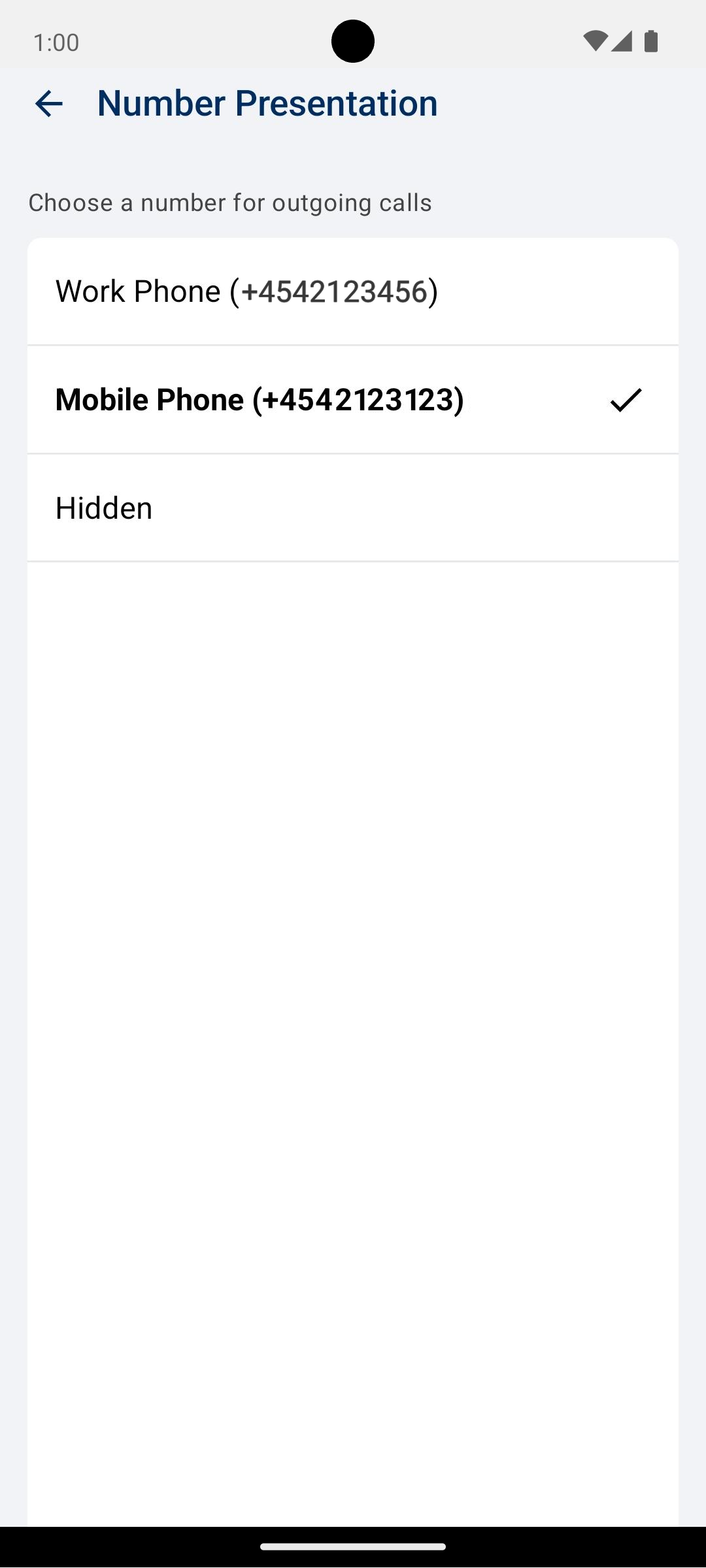
In the number presentation section, you have the ability to select which number should be presented outwards when calling from your devices
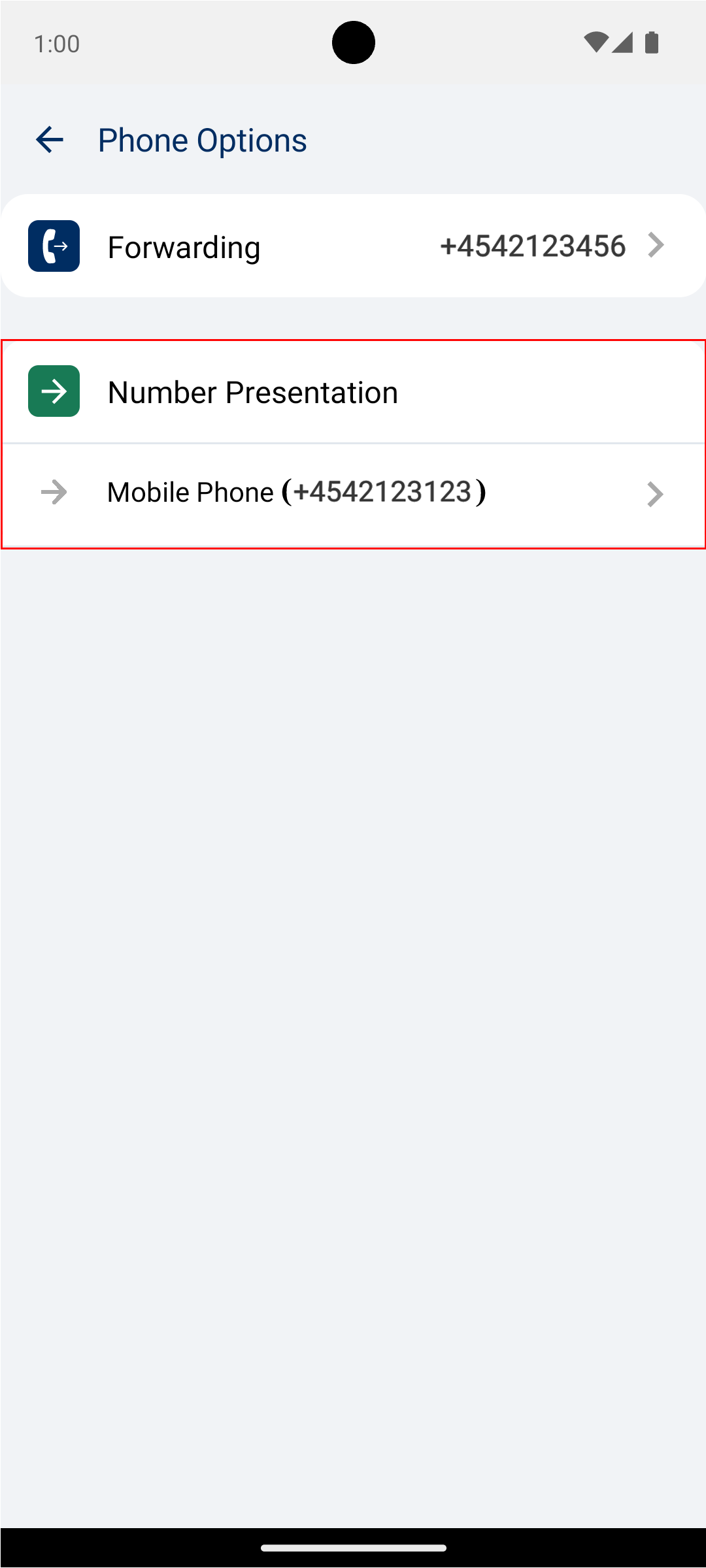
You will then be presented with a list of options. While these options depend on your particular setup and use of templates, the following are usually present.
Hidden |
Hidden. If chosen, the number will be hidden when calling. |
Work |
The Work number. |
Mobile |
The Mobile number. |
Opening the number presentation menu brings up a list of options. If you select “Work Phone”, your choice will apply to it. The page will then automatically return to the main phone options screen, showing the updated settings.