Time Groups
Time Groups are used to configure which supervisors can view and accept time registrations for which users.
A Time Group has a Category and a value. A Category defines how users are grouped within Time Groups.
A value which represents a value and is linked to a Category.
If a user has a value that corresponds to a Time Group’s value, they will automatically be part of that Time Group.
There are important interactions depending on whether the Time Group is single-valued or multi-valued:
If the Time Group is single-valued, a user can only belong to one Time Group within that category. If the user is added to a new Time Group, they will be removed from the previous group associated with that category.
If the Time Group is multi-valued, a user can belong to multiple Time Groups within the same category.
The Overview
Overview
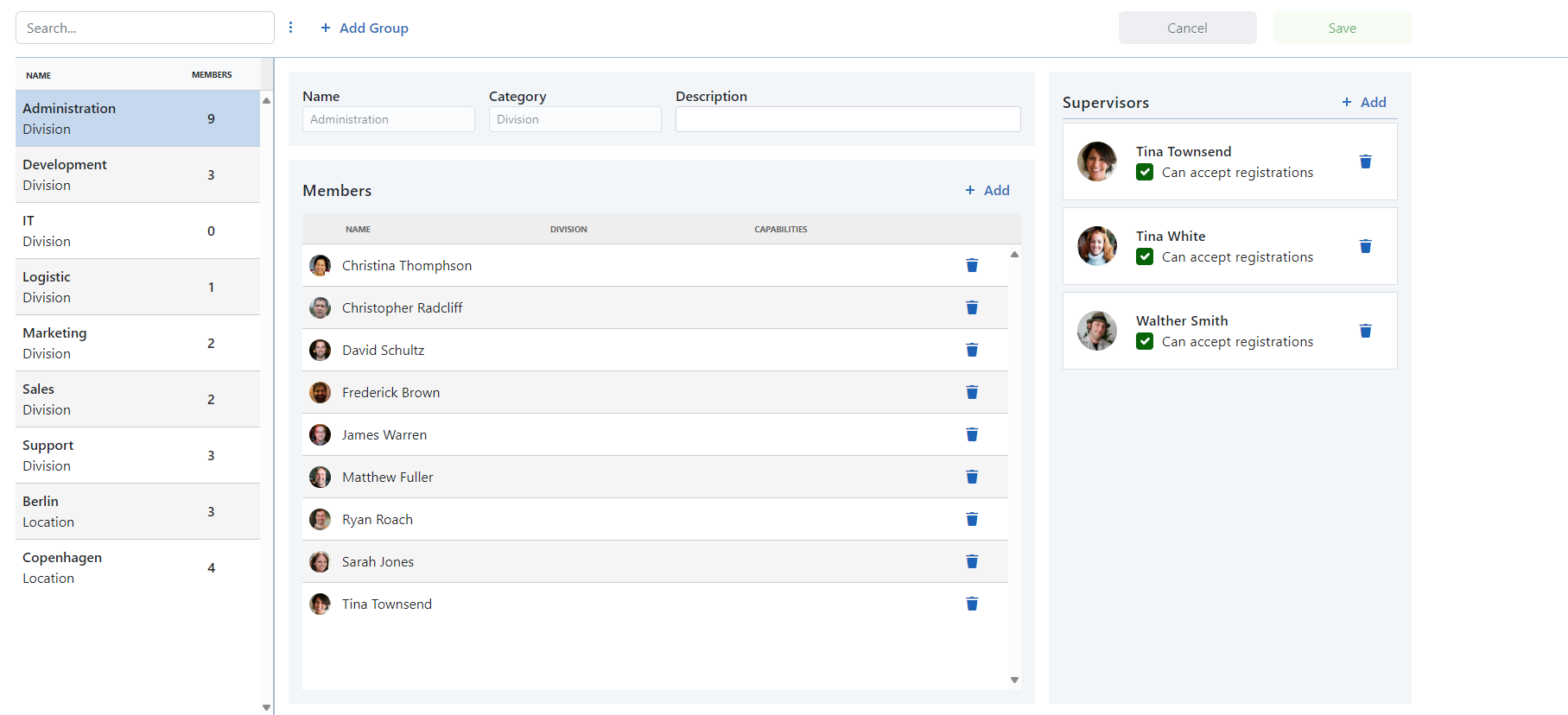
The Time Groups page allows users to manage which supervisors can access time registrations for different groups of users. The page is divided into two main areas:
Left Side: Displays a list of existing Time Groups with their name, Category, and number of members.
Right Side: Shows details of the selected Time Group.
List of Time Groups
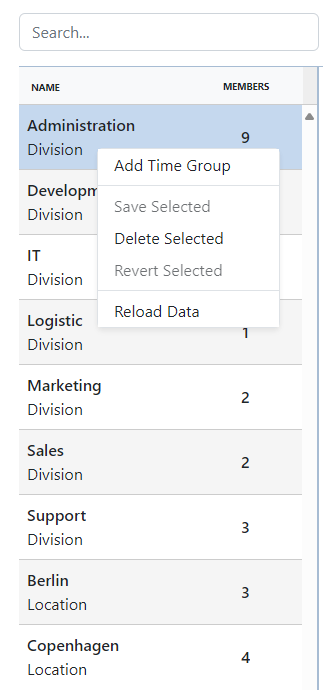
The list of Time Groups provides a searchable interface. Features include:
Filtering Time Groups using a text field.
Changing the selected Time Group by clicking on a group.
Right-click options such as adding, saving, marking for deletion, reverting changes, or reloading the page.
Add Time Group
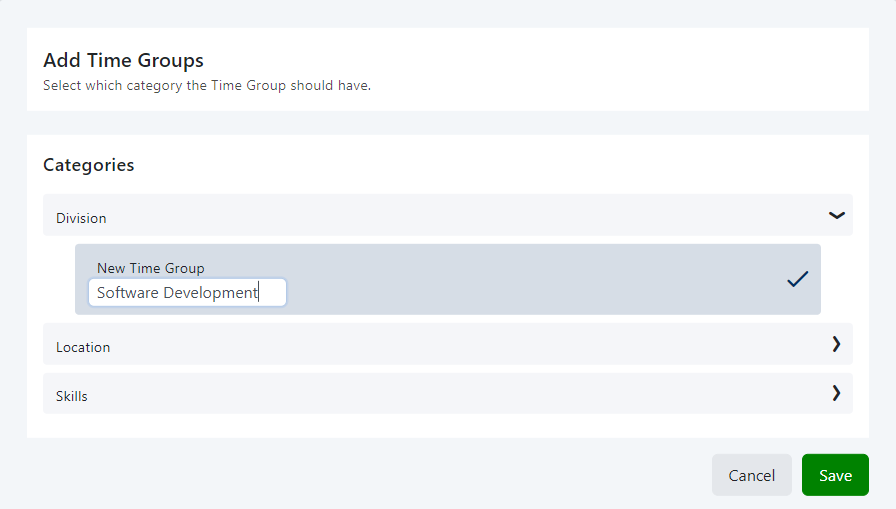
When clicking the Add group button, a pop-up will appear, where the category for the Time Group can be choosen.
The category determines the name of the group and the users that already have the value will automatically be part of the group.
Clicking on the category will expand the types belonging to the category. Clicking on the category type will select it with a check mark, showing which one is selected.
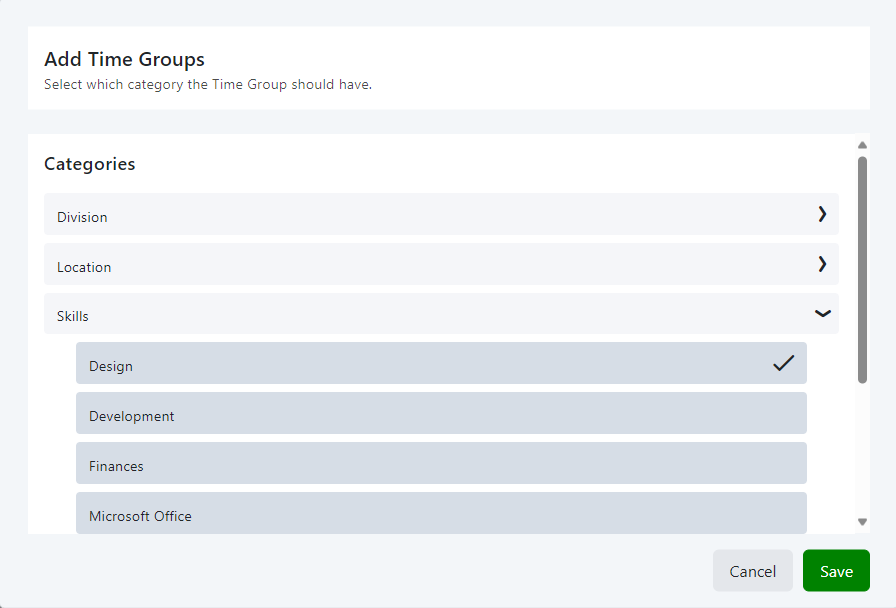
Once a category type is selected, press the Save button, and the site should navigate to a new page showing the information of the new Time Group.
It is also possible to create a new Time Group with a new category type. Choose the category for the category type and press the Add button.
This will open a text field to fill out the name for the new category time. Once the name is filled out, simply press save to create both the category type and the new Time Group.
Details
When clicking on a row in the Time Group list in the left hand side of the page or creating a new Time Group, the details section of the page will change.
On this section the users in the Time Group and the supervisors of the Time Group can be seen.
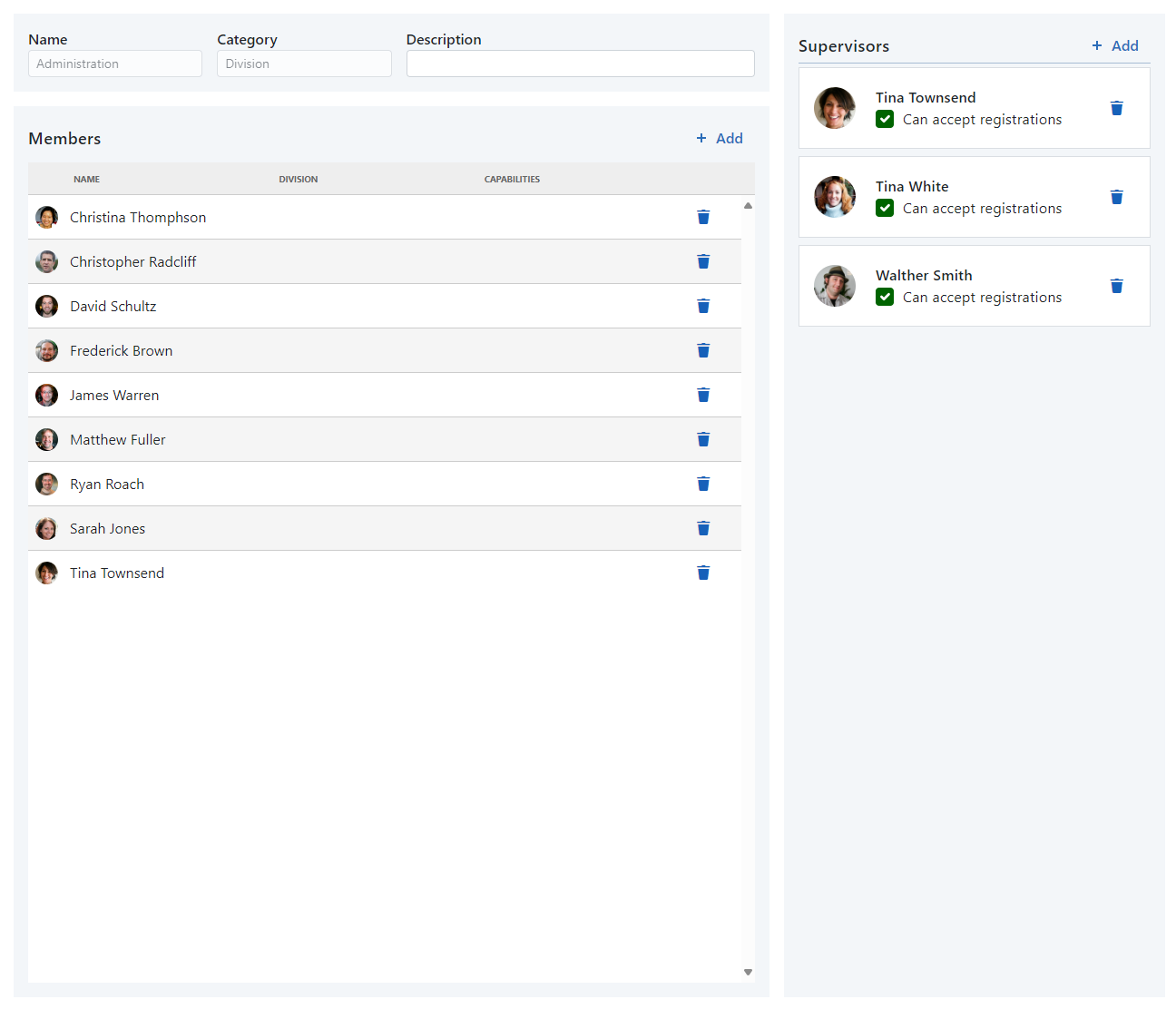
A user can be removed from the Time Group by clicking the trashcan icon in the table.
The supervisors can also be removed by using the trashcan icon.
Being a supervisor gives the user the right to view time registrations, but needs the Can accept registrations right to accept registrations for the users in the Time Group.
This gives the supervisor the ability to approve or reject time registrations submitted by users in the Time Group.
A supervisor can be given the right by adding the Can accept registrations checkmark.
Add Users
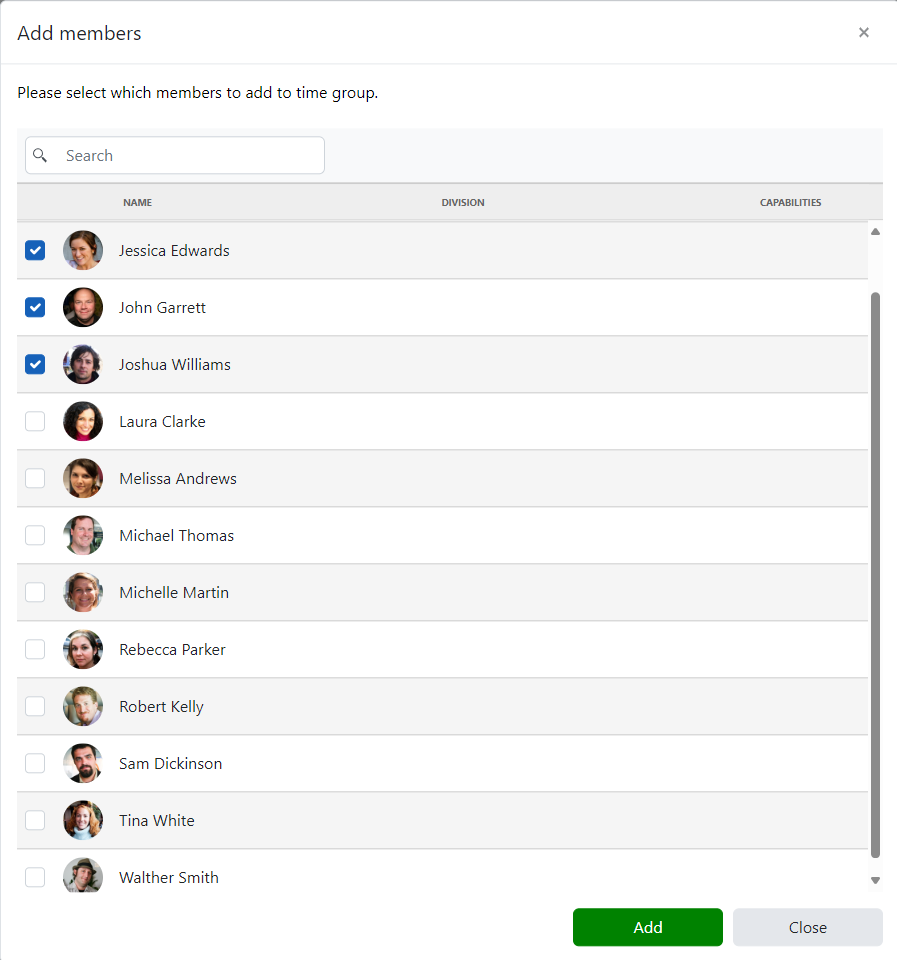
When clicking the Add button, a pop-up will appear, where users can selected.
These selected users will be added to the list of members or the list of supervisors when clicking the save button.